Chapter
02
Install and Architecture
Desktop app, daemon, SQLite, Electron, and Docker
Installing Open Design is choosing one of three paths, and understanding the daemon-plus-iframe architecture is what makes everything later make sense.
2.1 Three Ways to Install
Desktop app, from source, or Docker Compose — pick based on what you intend to do
Open Design ships three installation paths. The one you choose sets the ceiling on what you can do: the desktop app hands you a running system in minutes; the from-source path lets you modify skills and plugins; Docker Compose gets you a server deployment. Knowing the tradeoff upfront prevents the most common first-run frustration.
As of September 2026, Open Design is at v0.21.1 (released August 31, 2026). All three paths install the same version of the daemon and frontend; they differ only in packaging and environment control.
| Path | Best for | Trade-off |
|---|---|---|
| Prebuilt desktop app | Product designers, first-time users, anyone who wants a running Open Design in under five minutes without touching Node | You cannot modify skills or plugins; updates come as app releases |
| From source (pnpm) | Design engineers who intend to author custom skills, fork plugins, or contribute to the repo | Requires Node ~24 and pnpm 10.33.x; native module builds fail silently on version mismatch |
| Docker Compose | Teams deploying Open Design to a shared server, CI pipelines, or headless environments without Electron | No Electron shell; the UI is served in the browser only; requires Docker and the deploy/ directory |
Start with the prebuilt desktop app even if you are a design engineer who eventually wants to modify skills. The most common first-run failure is a native module build error caused by a Node or pnpm version mismatch, and the desktop app skips that entirely. Get comfortable with the tool first. Switch to from-source when you have a concrete reason to modify something. The exception is if you are onboarding a whole team onto a shared instance --- Docker Compose is worth the setup cost there.
Desktop App
Download the prebuilt installer from open-design.ai. Run it like any desktop application. The daemon starts automatically on first launch; the Electron shell wraps the frontend and communicates with the daemon via sidecar IPC. No terminal required.
The desktop app is also a launcher. Since the 0.10-era packaging work, the app in your Applications folder is a small, long-lived shell that downloads versioned payloads into a channel directory under ~/Library/Application Support/Open Design/ (macOS) or the equivalent on Windows and Linux, and activates one of them at launch. Updates arrive the same way: the shell fetches the next payload in the background, and --- if you left "Allow automatic install of future in-app updates" checked in Settings → About --- it activates on your next launch. The About page surfaces the state of that machinery honestly: current version, channel (stable), runtime ("Packaged app"), a "Check again" button, a link to the release notes, a Clear update cache action for when an update gets stuck (introduced in 0.17.0's update-recovery work), and automatic rollback to the last working version when an activation fails. On macOS you can also opt into silent updates (0.14.1), which apply a downloaded update at next start without prompting.
One operational consequence is worth knowing before you troubleshoot: the version in Add/Remove Programs or Finder "Get Info" can lag the version actually running, because the shell updates payloads independently of itself. When filing a bug or checking release notes, trust Settings → About, not the bundle metadata. And if your machine's shell ever reports "This environment does not support in-app updates" --- which happens when the app was handed off by an external launcher rather than started from its own payload --- the payload directory can be launched directly, or the shell reinstalled, to get the updater back.
From Source with pnpm
The from-source path requires exactly Node ~24 and pnpm 10.33.x. corepack enable ensures pnpm is at the right version before you install.
$ git clone https://github.com/nexu-io/open-design.git
$ cd open-design
$ corepack enable
$ pnpm install
$ pnpm tools-dev run web
Native build failures on version mismatch. Open Design pins Node ~24 and pnpm 10.33.x (as of June 2026). The better-sqlite3 package compiles a native binary at install time. If your Node version doesn't match the pin, the build fails --- sometimes silently --- and the daemon crashes at startup with a module-not-found or ABI-mismatch error. Check your Node version with node --version before running pnpm install. Use nvm or fnm to switch if needed.
Docker Compose
If you're deploying Open Design to a server or shared machine, Docker Compose handles the daemon, frontend, and SQLite volume in one command. The deploy/ directory at the repo root contains the Compose configuration.
$ cd deploy
$ docker compose up -d
Docker Compose brings up the daemon and serves the frontend at http://localhost:7456 by default. There is no Electron shell in this mode; you access Open Design through any browser. The SQLite database persists in a named volume so your projects survive container restarts.
2.2 First Run
Launch, verify, and confirm the daemon is healthy before generating anything
The daemon owns the truth. Before you can generate an artifact, the daemon must be running and healthy. These steps apply to the from-source path; desktop app users can skip to step 4 --- the app handles steps 1 through 3 automatically.
Start the dev daemon. Run pnpm tools-dev run web from the repo root. You should see the daemon and the Next.js dev server both starting in the same terminal output. The daemon serves the API and the frontend on port 7456 by default.
$ pnpm tools-dev run web
# Expected: daemon and frontend serving on :7456Verify the daemon health endpoint. Open a second terminal and hit the daemon's health route. A 200 response with a JSON status confirms the daemon is up and the SQLite database has been initialized.
$ curl -s http://localhost:7456/health
# Expected output:
{"status":"ok","version":"0.21.1"}Open the frontend. Navigate to http://localhost:7456 in your browser. You should see the Open Design dashboard with no projects yet. If the preview area stays blank or the dashboard shows a connection error, the daemon isn't reachable --- check the terminal output for startup errors.
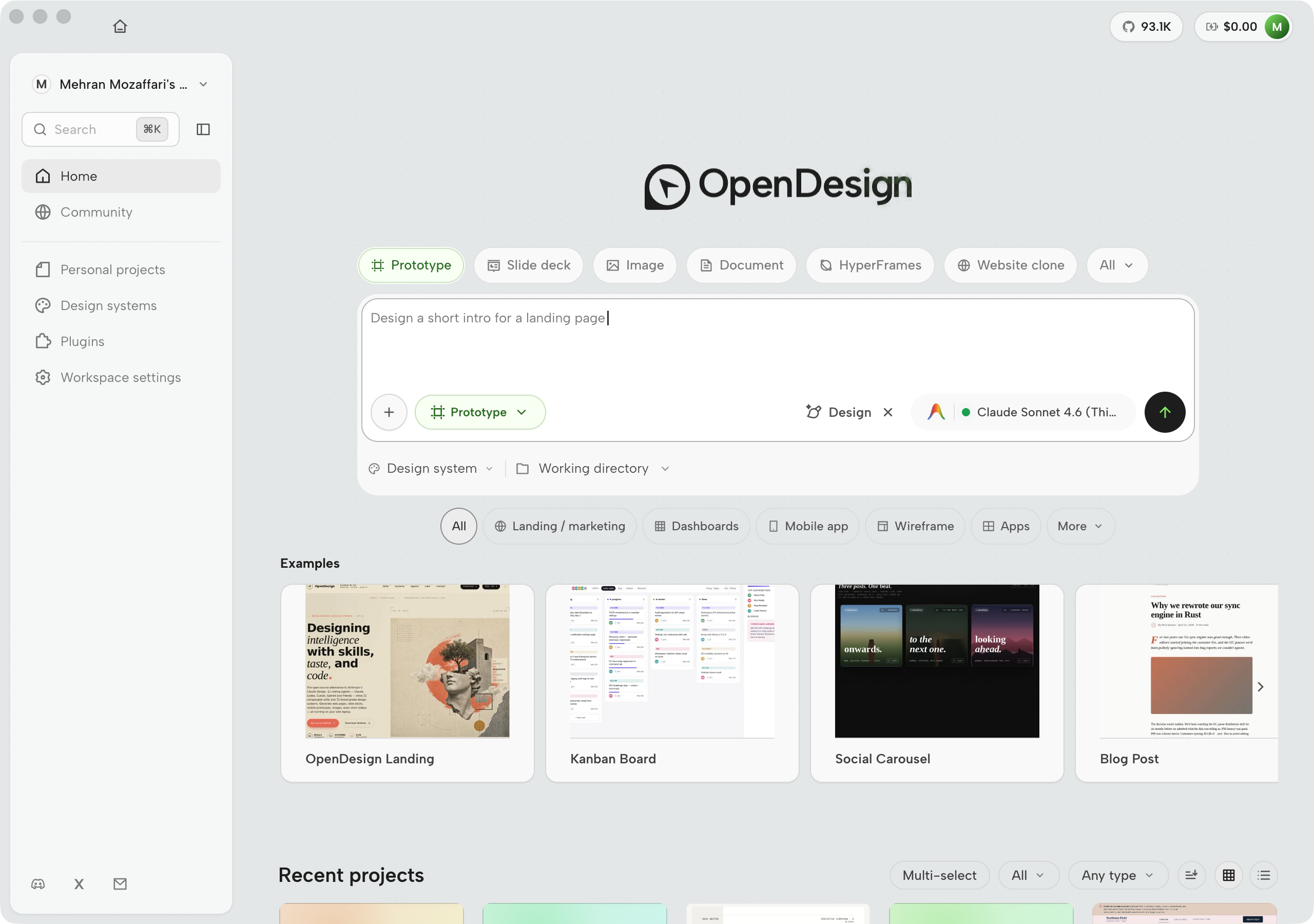
First run in 0.21.1 requires no account. Onboarding asks what you want to make and how you want to run it --- connect a locally installed coding-agent CLI, paste a BYOK key for an API provider, or sign into OpenDesign Cloud if you want the subscription models and hosted image generation. The app is light-first (the dark-mode setting was retired in 0.18.0), and Home opens on the Prototype creation type with a stable list of types that plugins can no longer mutate. If you ever want to replay that first-run flow, Settings → About has a Reset onboarding action.
Once you have more than a handful of runs in flight, Personal projects in the nav rail becomes the supervision surface: a filterable grid (or list) of everything you have made, with multi-select, type filters, and sorting. Projects that pause mid-run for a clarifying question surface their question in the chat pane and wait --- a paused agent turn explicitly waits for a human reply rather than failing silently in the background. The full workspace layout is shown in Figure D.7.
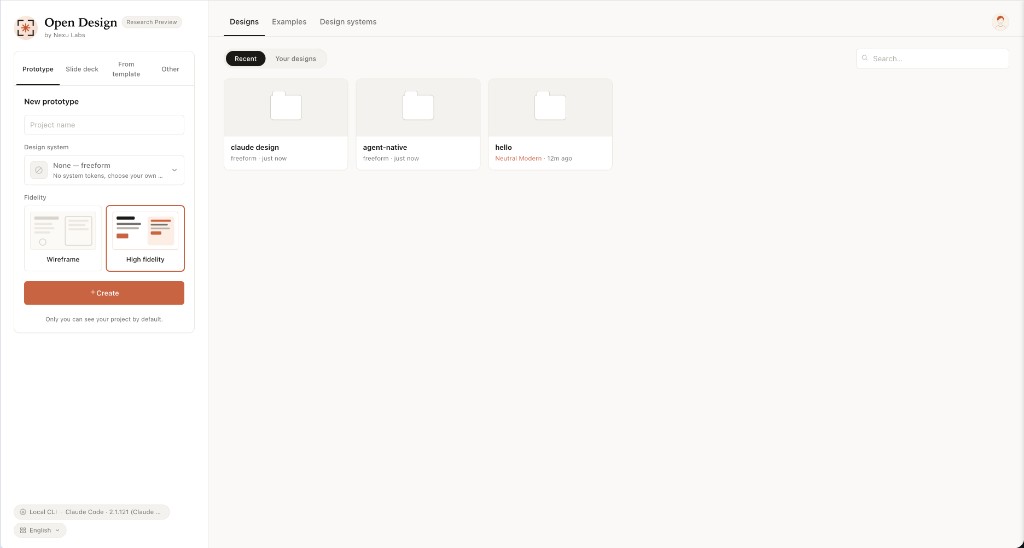
Create your first project. You don't create a project directly anymore --- you compose. Pick a creation type chip, describe what you want (or click an example), and press Run. Open Design creates the project directory inside its data namespace and opens the workspace, dropping straight into a Preparing state while the agent spins up. The daemon owns the files; the frontend is showing you what the daemon holds.
Connect a coding-agent CLI. Chapter 03 covers this in full. For now, confirm the MCP (Model Context Protocol) settings panel is reachable from the project sidebar --- that's where you'll register your agent in the next chapter.
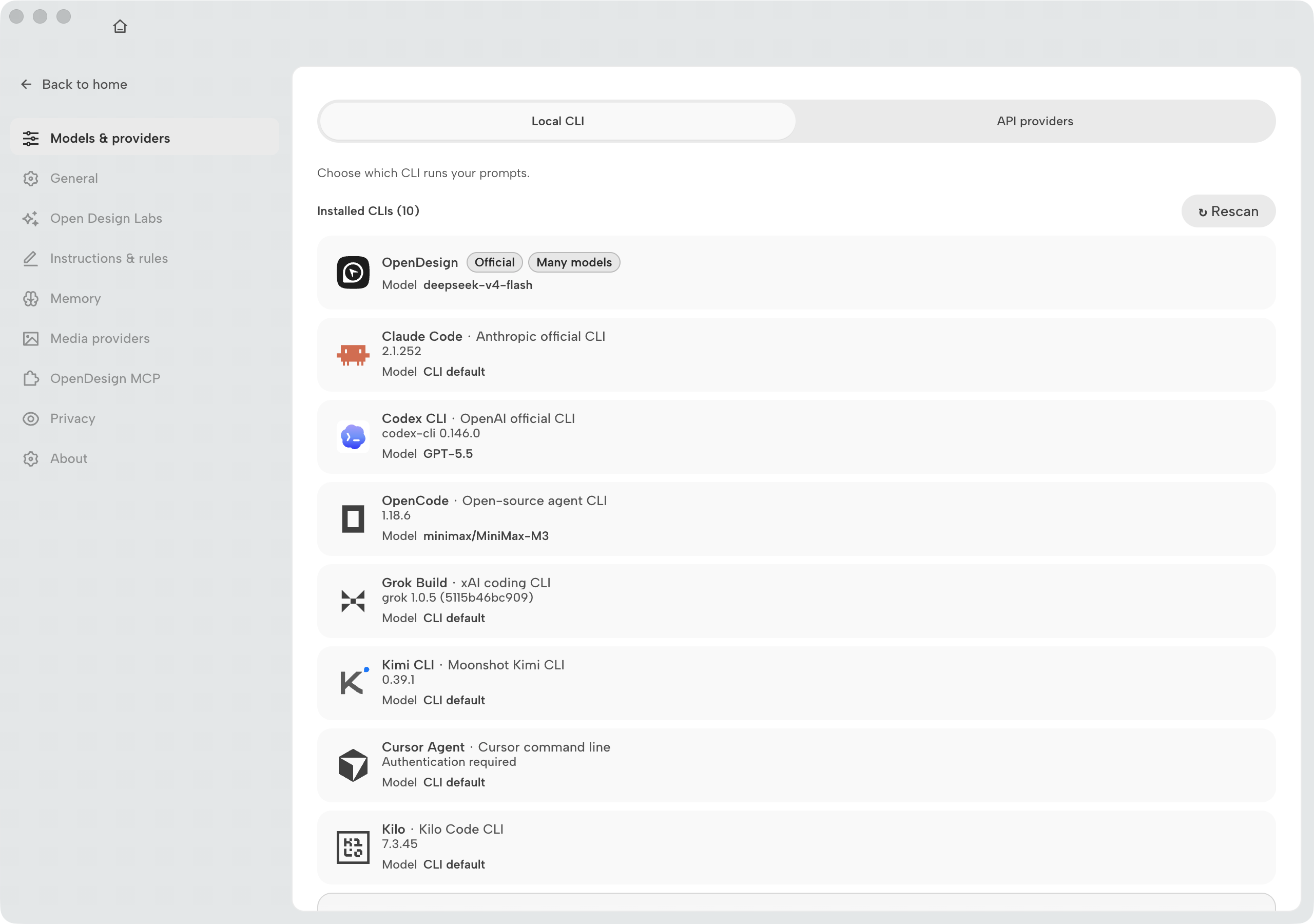
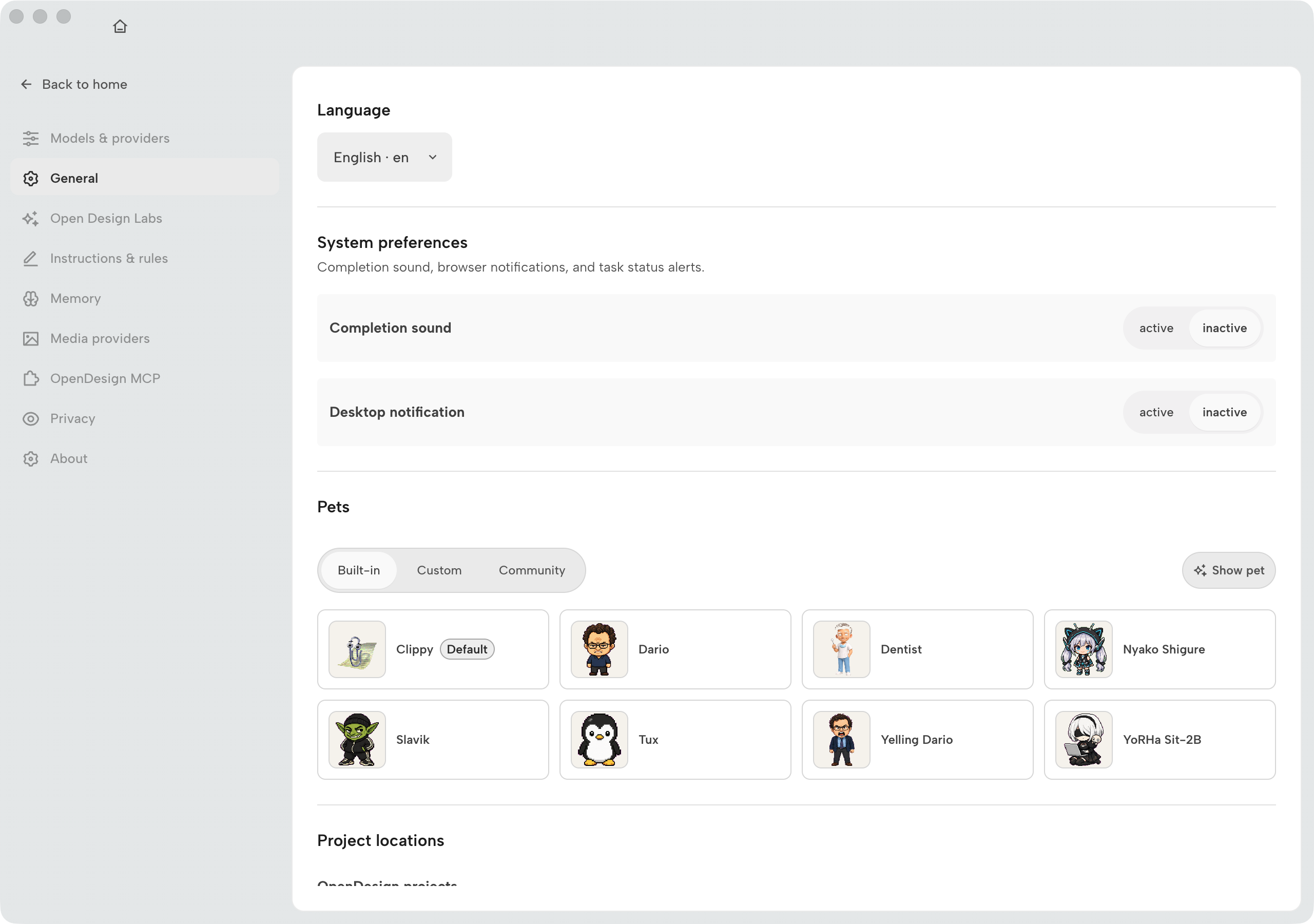
Cmd/Ctrl+,. Screenshot from OpenDesign desktop v0.21.1 (September 2026).Instructions, Memory, and Design Jury
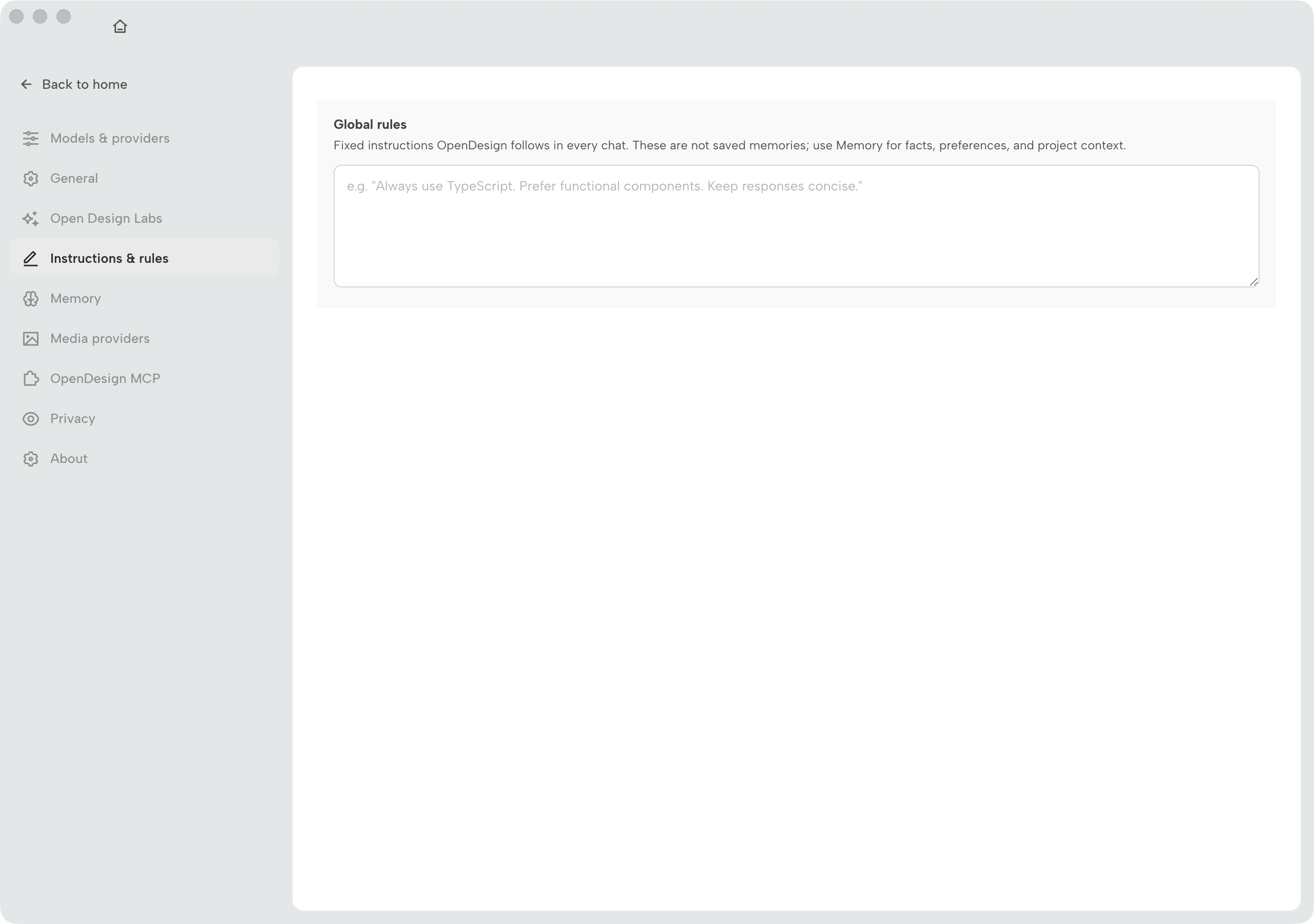
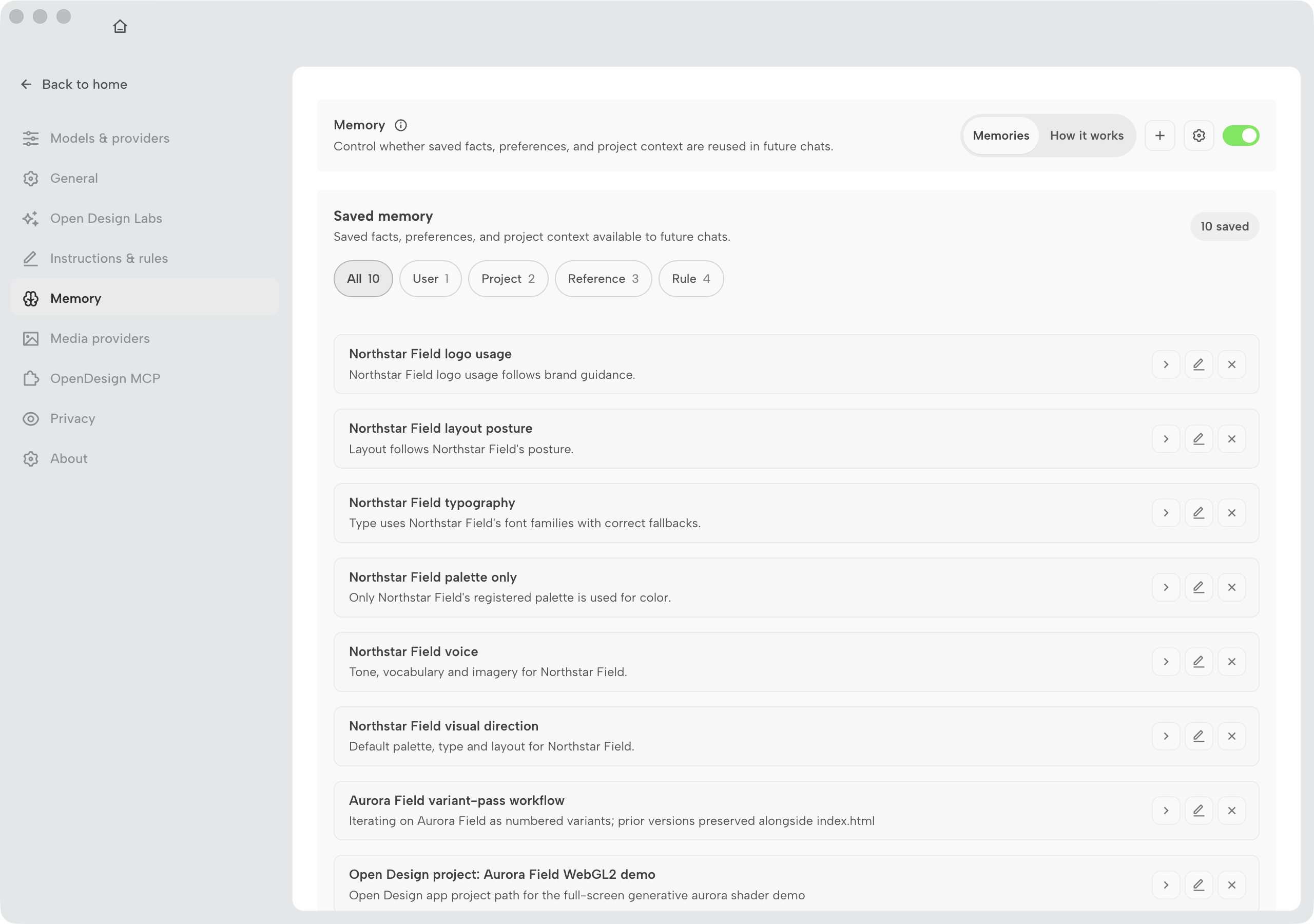
Settings also separate three knowledge layers that older releases buried or omitted. Treat them as different contracts with the agent:
- Instructions / Rules — fixed global rules injected into every chat. Stable policy, not facts.
- Memory — saved facts categorised as User, Project, Reference, or Rule, with a master toggle and per-item edit/delete. Extracted from chats and injected when relevant.
- Design Jury — optional five-panel scored review that streams alongside generation so you can interrupt before shipping. Covered in depth in Chapter 08.
The rest of Settings
In v0.21.1 the Workspace settings surface carries a left navigation rail with every configuration surface in one place. The knowledge layers above are the ones you touch most often during generation; the table below is a complete map of the rail so you know where to look when the environment changes.
| Category | Job |
|---|---|
| Models & providers | Choose Local CLI vs API providers, rescan for newly installed agents, and set per-CLI model tiers |
| General | Language, completion sound and desktop notifications, Pets, project locations, and the Design Jury toggle |
| Open Design Labs | Opt-in experiments; currently the Design Harness beta generation strategy (new in 0.21.1) |
| Instructions & rules | Fixed global rules injected into every chat |
| Memory | Saved facts by category (User, Project, Reference, Rule) with a master toggle |
| Media providers | Connect image, video, audio, and search providers (MiniMax, Nano Banana, OpenAI, OpenRouter, xAI Grok Imagine, ElevenLabs, Tavily, and more) with masked keys |
| OpenDesign MCP | Copy-paste setup commands that expose OpenDesign tools to coding agents (Chapter 10) |
| Privacy | Anonymous metrics, conversation-sampling toggle, anonymous-ID rotation, data deletion |
| About | Version, channel, runtime, update controls (check, clear cache, auto-install), diagnostics, onboarding reset |
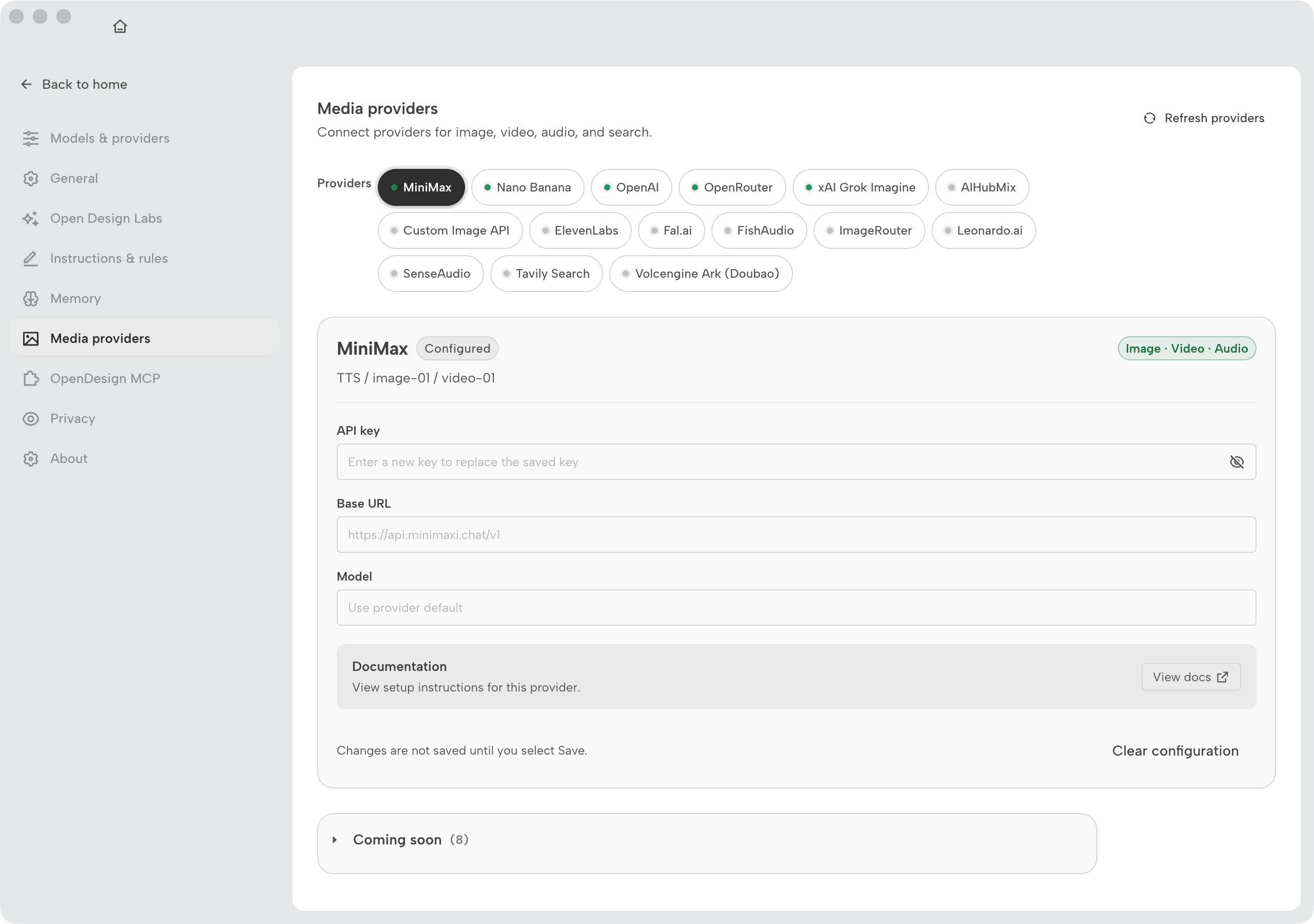
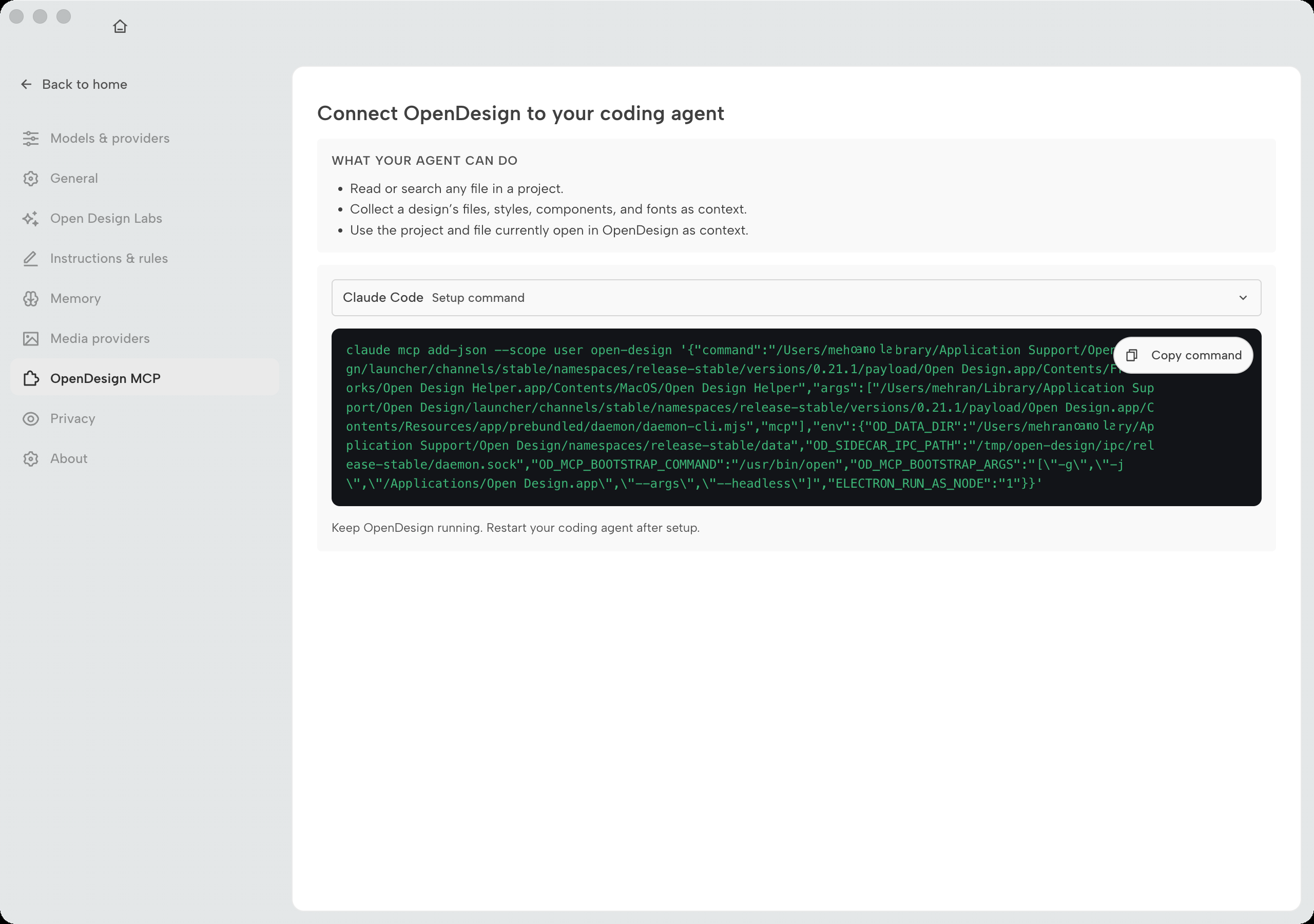
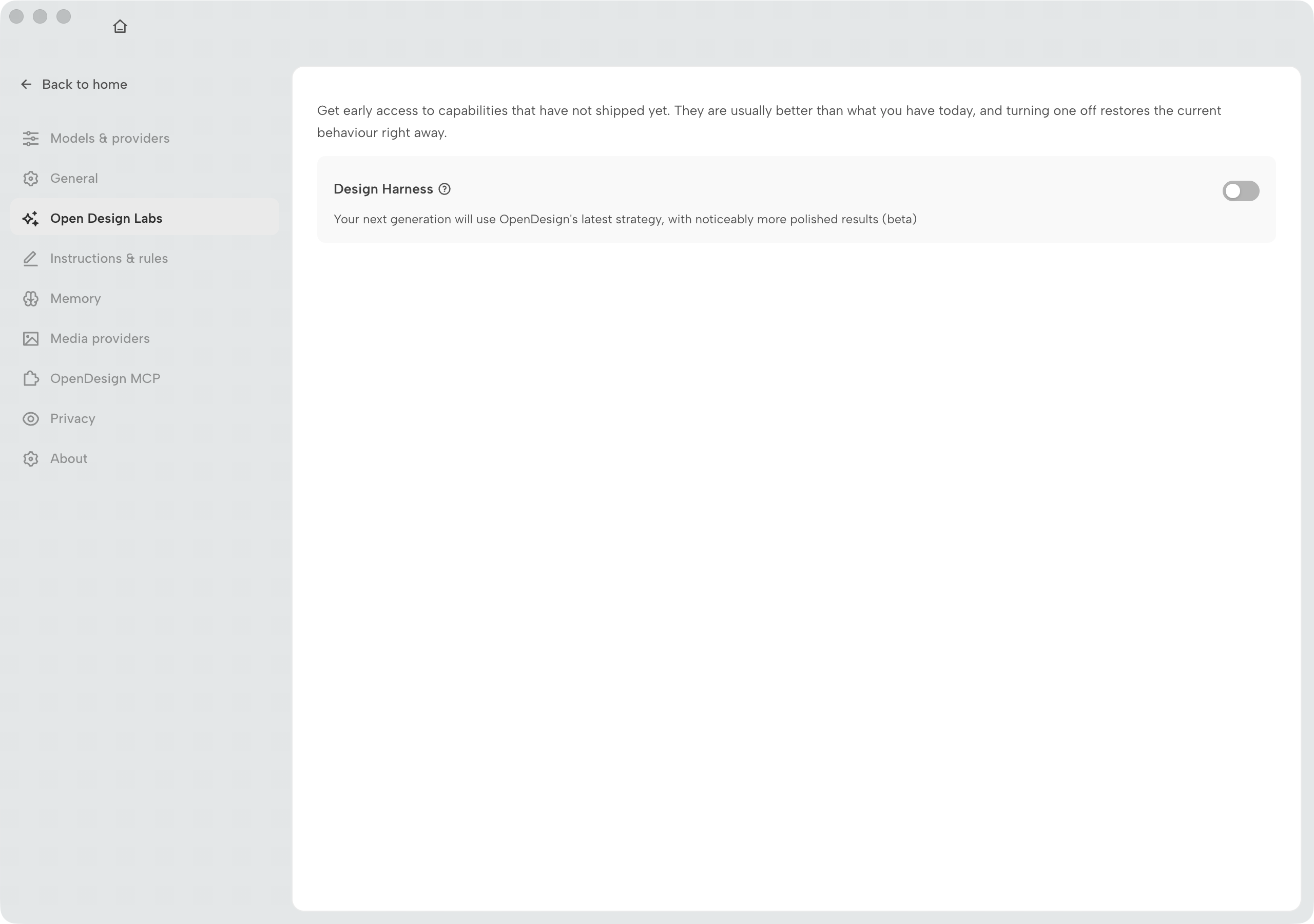
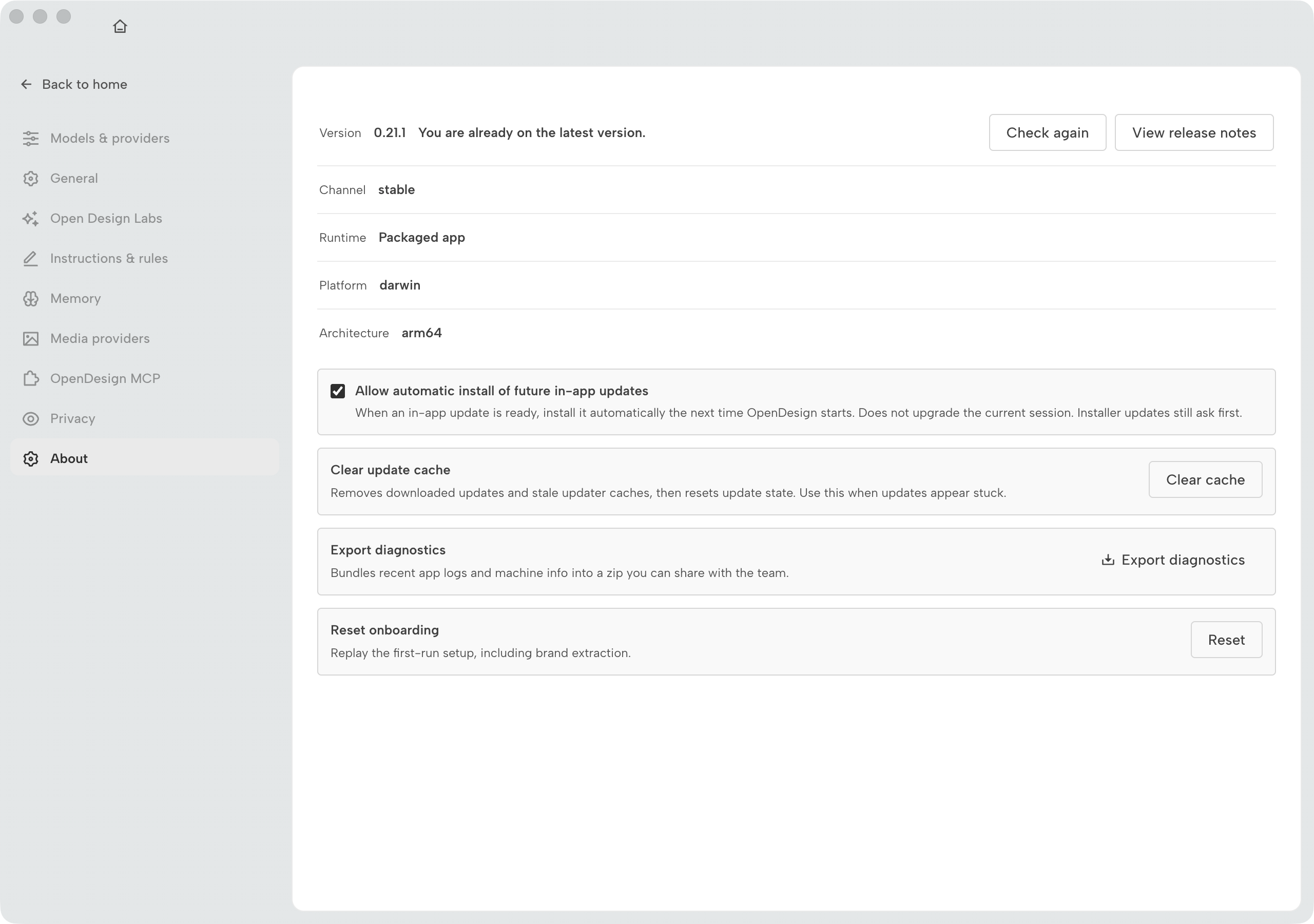
The full visual tour of every settings section --- including the panels not reproduced here --- is in Appendix D.9.
When the First Run Breaks
Native build errors and version mismatches account for most first-run failures. Here are the patterns I encounter most often.
| Symptom | Cause | Fix |
|---|---|---|
Error: Cannot find module 'better-sqlite3' or ABI mismatch at startup |
Node version doesn't match the pin (~24); native module compiled against the wrong ABI | Run node --version; switch to Node 24 with nvm use 24; delete node_modules and run pnpm install again |
| pnpm install hangs or fails with unsupported engine error | pnpm version isn't 10.33.x; corepack enable not run first |
Run corepack enable, then pnpm --version to confirm 10.33.x, then retry install |
| Dashboard shows "daemon unreachable" or blank preview area | Daemon process failed to start, or is not serving on the expected port | Check terminal for startup errors; confirm daemon is running on port 7456; restart with pnpm tools-dev run web |
| Docker Compose: frontend loads but projects don't persist after restart | SQLite volume not mounted; container using an ephemeral filesystem | Check deploy/docker-compose.yml for a named volume attached to the SQLite path; verify with docker volume ls |
| Desktop app: "update required" banner on first launch | App installer is older than the current release; auto-updater requires internet access | Allow the auto-update to complete, or download the latest installer from open-design.ai |
2.3 The Daemon
The Express process that owns orchestration, storage, and streaming
The daemon owns the truth. It is a long-lived Node 24 Express process that owns three things: the SQLite database, the project files on disk, and the agent orchestration loop. The frontend and the preview iframe are both just windows onto what the daemon holds. Understanding this split resolves most confusion about where state lives and why a browser refresh doesn't lose your work.
The daemon exposes an HTTP API consumed by the Next.js frontend. For artifact generation, it uses Server-Sent Events (SSE) to stream tokens from the agent back to the browser in real time. SSE is unidirectional --- the daemon pushes; the frontend listens --- which keeps the streaming path simple and resilient to browser tab-switching.
Claude Code, Cursor, or any of the 26+ supported CLIs. Sends prompts and receives completions via MCP.
Node 24. Owns orchestration, the SQLite database, and project files. Streams artifact tokens over SSE.
React 18 + TypeScript. Reads daemon state via HTTP. Receives artifact stream over SSE and passes it to the preview.
Sandboxed. The streaming artifact parser writes tokens into the iframe as they arrive. Safe from the host page.
SSE and the Streaming Artifact Parser
When the daemon receives an artifact generation request, it opens an SSE stream to the client. Tokens arrive as data: events. The frontend's streaming artifact parser assembles them progressively --- which is why you see the artifact appear word by word in the preview before generation is complete.
This matters for troubleshooting: if the preview stops mid-generation, the SSE connection dropped. This is almost always a network proxy or a browser extension killing long-lived connections. Disable proxy-caching extensions or set a generous SSE timeout if you're behind a corporate proxy.
better-sqlite3 and Synchronous Storage
The daemon uses better-sqlite3 for all persistent state. Unlike the async SQLite drivers, better-sqlite3 runs synchronously --- writes block until committed, reads return immediately. This keeps the daemon's internal state machine simple: no callback hell, no partial-write races, no connection pool. For a single-user local daemon, synchronous SQLite is exactly the right call.
The tradeoff is that every write to ~/.od/app.sqlite is a blocking operation on the daemon's event loop. In practice this is not a problem for interactive use, but if you write a plugin that writes frequently to the database in a tight loop, you'll feel it. Batch writes where you can.
2.4 Where Your Work Lives
The .od directory layout and what to back up
Open Design stores everything under ~/.od/. Two things matter here: the project directories under ~/.od/projects/ hold your artifact files; ~/.od/app.sqlite is the index that makes sense of them. Back up both or you lose either the files or the ability to navigate them.
~/.od/
├── projects/
│   ├── <project-uuid-1>/
│   │   ├── artifacts/      # Generated HTML, PDF, PPTX, MP4, ZIP, MD files
│   │   ├── previews/       # Cached preview snapshots
│   │   └── exports/        # Final exported files
│   └── <project-uuid-2>/
│       └── ...
├── app.sqlite              # All project metadata: names, histories, settings
├── config.json             # Daemon configuration: ports, model provider keys
└── logs/                   # Daemon logs, one file per day
What to Back Up
The daemon owns the truth, and the truth lives in two places. Backing up one without the other leaves you in an inconsistent state.
| Path | Contains | Backup priority |
|---|---|---|
~/.od/app.sqlite |
All project metadata, artifact history, settings, and the index linking UUIDs to project names | Critical. Losing this makes the project directories orphaned and unnavigable through the UI |
~/.od/projects/ |
All generated artifact files, previews, and exports | Critical. Losing this means no exportable files even if the database is intact |
~/.od/config.json |
Daemon port, model provider API keys (if stored here), and runtime settings | Important. Losing it requires reconfiguring your agent connections and provider keys |
~/.od/logs/ |
Daemon logs for debugging | Low. Useful for debugging but not needed for recovery |
Portability Between Machines
To move an Open Design installation to a new machine, copy the entire ~/.od/ directory. Because the daemon indexes projects by UUID, not by absolute path, the projects should be navigable on the new machine once you start the daemon. If you're using Docker Compose, the named volume is the equivalent of ~/.od/; export it with docker volume export.
2.5 The Frontend and the Sandboxed Preview
Next.js 16, React 18, and the srcdoc iframe that keeps generated code isolated
The frontend is a Next.js 16 application built on React 18 and TypeScript. It talks to the daemon over HTTP and receives the artifact stream over SSE. The most important design decision in the entire preview system is the choice to render generated artifacts inside a sandboxed srcdoc iframe --- not in the React component tree directly. That choice is what Open Design documents as isolating agent-generated HTML, JavaScript, and CSS from the host page's browser session, cookies, and DOM. (This describes documented design intent, verified through 0.21.1; it is not a security guarantee — see the not-security-advice note in front matter.)
Why srcdoc, Not innerHTML
A naive implementation would parse the generated HTML and inject it into a DOM node with innerHTML. The problem: any JavaScript in the generated artifact would execute in the same origin as the Open Design frontend. A generated artifact with a document.cookie access or a localStorage.clear() call would run against your real session.
The srcdoc iframe solves this by giving the artifact its own isolated document. Open Design's sandbox configuration omits allow-same-origin while including allow-scripts; in this configuration, the browser prevents scripts inside the iframe from accessing the parent frame's DOM or storage. The streaming artifact parser writes tokens into the iframe's document as they arrive from the daemon, so you see the artifact build in real time. (This describes the sandbox configuration as documented through 0.21.1; sandbox attributes may be adjusted in future versions — verify current behavior against the repo.)
docs/screenshots/01-entry-view.png in the Open Design repository. Original copyright: Open Design authors.The sandbox is not a restriction on what the artifact can do --- it's a restriction on what the artifact is configured to do to the host page. Generated CSS animations, interactive JavaScript, and complex layouts all work inside the iframe. What the sandbox configuration prevents is cross-frame access to the host page's DOM and storage. Keep the sandbox on, and verify the sandbox attributes haven't been relaxed if you're building on a fork.
The Next.js 16 Frontend
As of June 2026, the frontend runs on Next.js 16 with React 18. The App Router is used throughout. The frontend is a display layer --- it does not hold authoritative state. If you close the browser tab and reopen it, the project list and artifact history are still there because the daemon and its SQLite database didn't change. The daemon owns the truth; the frontend renders it.
This separation has a practical consequence: you can restart the frontend server without losing work. The daemon continues running and holds all state. When the frontend reconnects, it reads the current state from the daemon. This also means you can have multiple browser tabs showing different projects simultaneously, each connected to the same daemon --- they stay in sync because they're all reading from the same source.
2.6 The Electron Shell and Docker Option
Desktop packaging with sandboxed renderer, and server deployment with Compose
The prebuilt desktop app wraps the frontend and daemon in an Electron shell. Electron handles process management, auto-update, native OS integration, and the sandboxed renderer that adds a second layer of isolation on top of the srcdoc iframe. If Electron is the wrong fit for your deployment --- shared servers, headless CI, Docker-native infrastructure --- the Docker Compose path gives you the same daemon and frontend without it.
The Electron Shell
Electron hosts the Next.js frontend in a sandboxed renderer process. The renderer communicates with the daemon via sidecar IPC --- a lightweight inter-process channel that the Electron main process manages. This means the daemon is a separate Node process from the Electron main process, not a thread inside it. If the daemon crashes, the Electron shell can report it and offer a restart without the whole app exiting.
The Electron sandboxed renderer disables Node.js integration in the browser context, so the frontend JavaScript cannot make arbitrary filesystem calls even though it's running inside a desktop app. Open Design's desktop packaging is designed with two sandbox boundaries between agent-generated code and your filesystem: the srcdoc iframe boundary, and the Electron renderer boundary. (This describes documented design intent, verified through 0.21.1; it is not a security warranty — see the not-security-advice note in front matter.)
Optional desktop wrapper. Sandboxed renderer process + sidecar IPC. Handles auto-update and native OS integration.
Absent in Docker Compose and from-source browser paths.
React 18 + TypeScript. Display layer only — holds no authoritative state. Served at localhost:7456.
The single source of truth. Owns the better-sqlite3 database, project files on disk, and agent orchestration. Streams artifact tokens to the frontend over SSE.
~/.od/app.sqlite)
All project metadata, artifact history, and settings. Synchronous writes via better-sqlite3. Persistent volume in Docker Compose.
localhost:7456. The Electron shell is absent in Docker Compose and browser-only deployments. Schematic illustration (not a screenshot).When to Use Docker Compose
Docker Compose is the right choice when you need Open Design accessible to multiple people without installing Electron on each machine, or when you're deploying to a Linux server. The Compose file in deploy/ runs the daemon and frontend as separate services with a shared SQLite volume.
| Constraint | Use Electron shell | Use Docker Compose |
|---|---|---|
| Single developer, local machine | Yes — zero overhead, native OS integration | Unnecessary; adds Docker maintenance cost |
| Shared team deployment on a server | No — Electron requires a display server | Yes — headless, browser-accessible |
| CI/CD pipeline with artifact generation | No | Yes — composable with existing Docker tooling |
| Need auto-update from open-design.ai | Yes — built into the desktop app | No — requires manual image pulls |
| Air-gapped or proxy-heavy corporate network | Possible, with download caching | Yes — once image is pulled, fully offline |
Architecture in One View
At this point you have a mental model of the full system. The daemon owns the truth: it owns the SQLite database, the files, and the agent orchestration. The frontend and the preview iframe are windows. The Electron shell is optional packaging. Docker Compose is an alternative runtime environment. All of these serve the same daemon core.
Optional. Sandboxed renderer + sidecar IPC. Native OS integration and auto-update.
React 18, TypeScript. Display layer only. Reads state from daemon via HTTP; receives artifact stream via SSE.
Owns orchestration, better-sqlite3 database, and project files. Streams artifacts over SSE.
Sandboxed preview. Streaming artifact parser writes tokens in real time. Isolated from host page.
The daemon-as-truth-owner design is the part of Open Design's architecture that most people underestimate on first use. I've seen teams try to back up just the project files and wonder why the UI can't find them after a machine migration. The daemon owns the truth means the SQLite database is the first thing you back up, not the last. The files are useless without the index, and the index is useless without the files. Treat them as a single unit.