A Claude Code Command Reference for Designers
The commands, shortcuts, and settings you will actually use
Twenty commands, a handful of shortcuts, and the right settings are all you need for 90% of your design work in Claude Code.
A.1 Essential Commands
Essential Commands
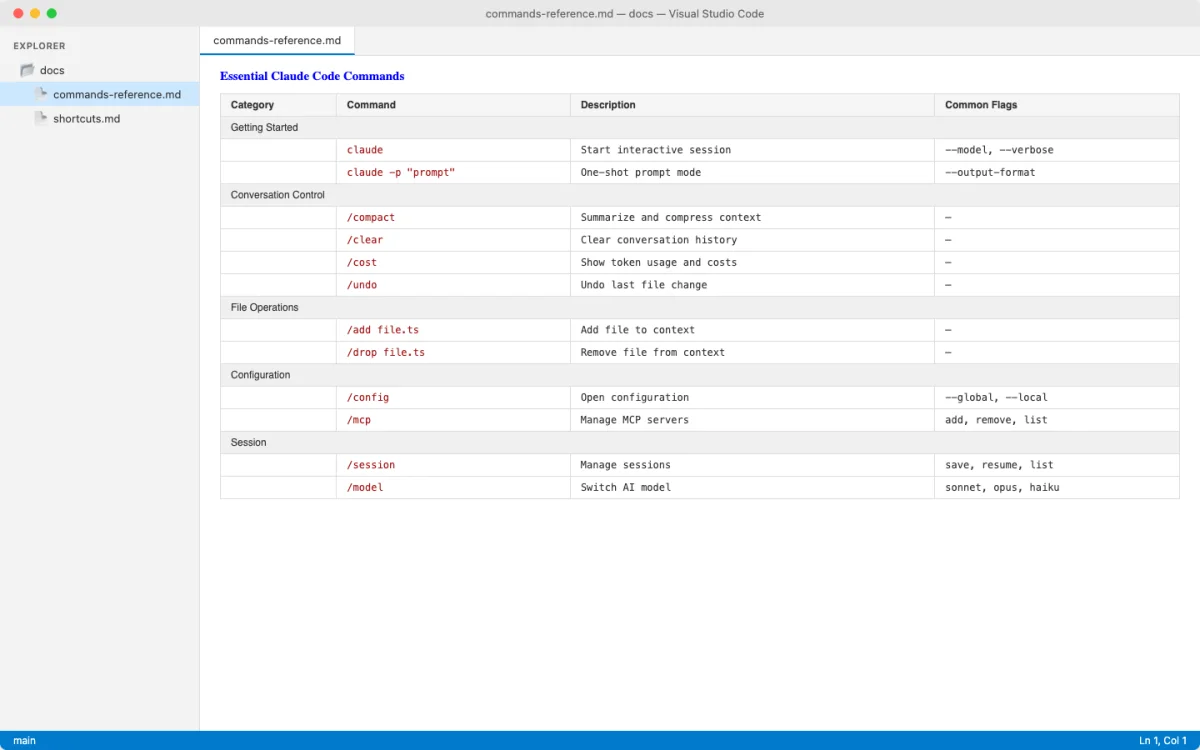
These are the commands a designer uses day to day. Not an exhaustive list of everything Claude Code offers, but the subset that covers starting, running, reviewing, and managing your design-to-code sessions.
Starting and Resuming Sessions
| Command | What It Does | When a Designer Uses It |
|---|---|---|
claude |
Start an interactive session | Beginning any design-to-code task |
claude "prompt" |
Start with an initial prompt | Quick one-off questions like "describe this layout" |
claude -c |
Continue last session | Picking up where you left off yesterday |
claude -r "name" |
Resume a named session | Returning to a specific design project |
claude -p "query" |
Non-interactive: print and exit | Scripting tasks like extracting design tokens from CSS |
cat file.png | claude -p "describe" |
Process piped content | Analyzing a design mockup from the command line |
Setup and Maintenance
| Command | What It Does | When a Designer Uses It |
|---|---|---|
claude update |
Update to latest version | Keeping Claude Code current (check monthly) |
claude auth login |
Sign in to your account | First-time setup or after token expiry |
claude auth status |
Check authentication state | Diagnosing "not logged in" errors |
claude mcp |
Configure MCP servers | Connecting Figma, Notion, or other design tools |
claude agents |
Open background agent manager | Monitoring long-running design tasks |
claude --version |
Show installed version | Confirming you are on the latest release |
Slash Commands by Workflow Stage
The slash commands you type inside a session are the ones you will use most often. Here they are organized by when you need them.
| Stage | Command | What It Does |
|---|---|---|
| Starting a project | /init |
Generate a CLAUDE.md with design system conventions |
| Starting a project | /mcp |
Set up design tool connections (Figma, Notion) |
| Starting a project | /permissions |
Pre-approve common tools so you stop getting prompted |
| During a task | /plan |
Plan before a big design change |
| During a task | /compact |
Free context (design screenshots eat a lot of context) |
| During a task | /model |
Switch model mid-session |
| During a task | /effort |
Adjust reasoning depth (low for quick tweaks, high for redesigns) |
| During a task | /btw |
Quick question without bloating conversation history |
| Reviewing work | /diff |
See all code changes Claude made to your design files |
| Reviewing work | /review |
Have Claude review its own output for design consistency |
| Reviewing work | /copy |
Grab generated CSS or HTML to clipboard |
| Managing sessions | /clear |
Fresh conversation (keeps project memory) |
| Managing sessions | /export |
Save the full conversation as a design decisions record |
| Troubleshooting | /doctor |
Automated diagnostics for installation and settings |
| Troubleshooting | /context |
See context window usage grid |
Designer-Relevant CLI Flags
Flags modify how Claude Code runs. Here are the ones that matter for design work.
| Flag | What It Does | Design Use Case |
|---|---|---|
--model sonnet |
Select a specific model | Use Sonnet for faster responses on style and layout tasks |
--effort low|high |
Set reasoning effort | Low for "extract the color palette." High for "rebuild this dashboard." |
--permission-mode plan |
Preview before executing | See what Claude would change before it touches your files |
--add-dir ./assets |
Add a working directory | Point Claude at a design assets folder alongside your code |
--append-system-prompt "..." |
Add to the system prompt | Specialize Claude for a design task: "You are a design system expert" |
--max-budget-usd 2.00 |
Cap spending on a run | Limit cost on scripted batch design tasks (print mode only) |
-n "my-task" |
Name the session | Resume by name later instead of restarting |
A.2 Keyboard Shortcuts
Keyboard Shortcuts
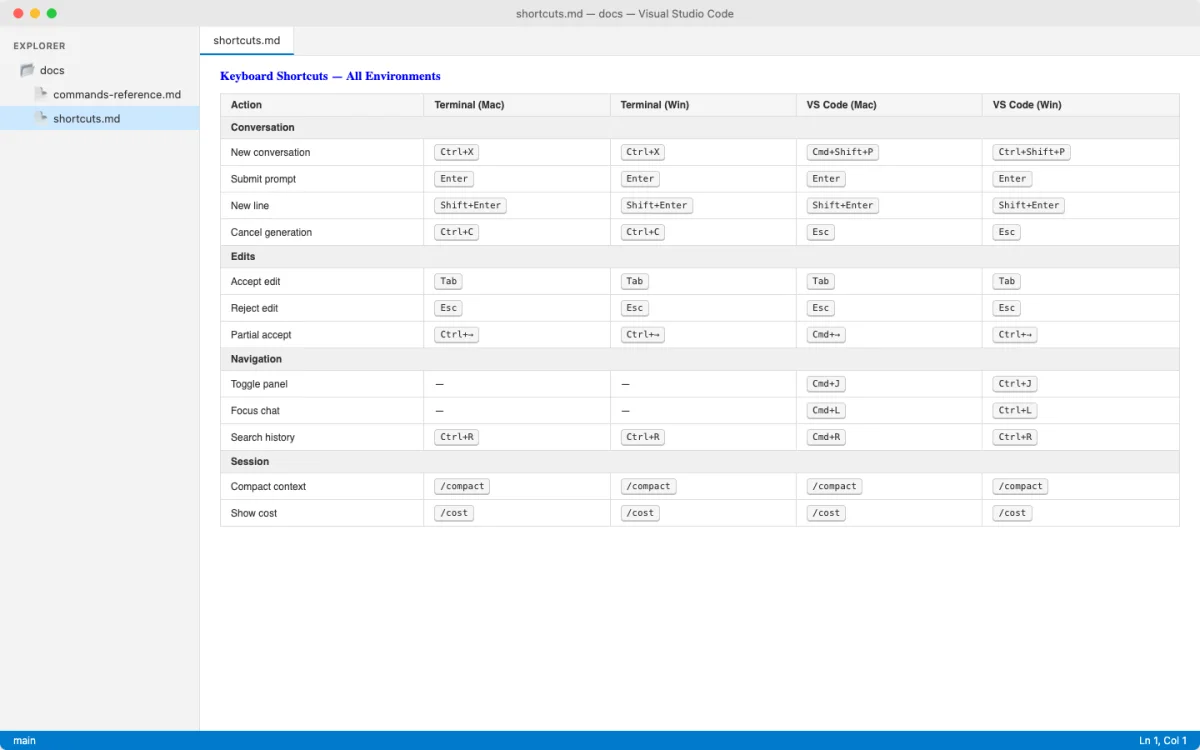
You do not need to memorize all of these. Start with the top five, add the rest as they become useful.
The Five Worth Memorizing
| Action | Mac | Windows / Linux | Why Designers Care |
|---|---|---|---|
| Paste image | Cmd+V (iTerm2) |
Ctrl+V |
Feed design mockups and screenshots directly into Claude |
| Interrupt | Esc |
Esc |
Stop Claude when it heads in the wrong design direction |
| Rewind changes | Esc Esc |
Esc Esc |
Undo code changes that broke your layout |
| Cycle permission modes | Shift+Tab |
Shift+Tab |
Switch to plan mode before a risky redesign |
| Transcript viewer | Ctrl+O |
Ctrl+O |
Inspect exactly what Claude did (files read, commands run) |
Shortcuts for Regular Use
| Action | Mac | Windows / Linux |
|---|---|---|
| Cancel current operation | Ctrl+C |
Ctrl+C |
| Background a running task | Ctrl+B |
Ctrl+B |
| Redraw screen (fix garbled display) | Ctrl+L |
Ctrl+L |
| Search command history | Ctrl+R |
Ctrl+R |
| File mention | @ |
@ |
| Shell mode (run a quick command) | ! |
! |
| Slash command menu | / |
/ |
| New line in prompt | \ then Enter |
\ then Enter |
| Switch model mid-session | Option+P |
Alt+P |
| Toggle extended thinking | Option+T |
Alt+T |
On macOS, the Option key shortcuts (Option+P, Option+T) require configuring "Option as Meta" in your terminal. In iTerm2: Settings → Profiles → Keys → set "Option Key" to "Esc+". In VS Code: set terminal.integrated.macOptionIsMeta to true in your settings.
A.3 Settings for Design Workflows
Settings for Design Workflows
Claude Code settings live in JSON files at different scopes. This section covers the settings that affect design output quality and daily workflow.
Settings Hierarchy
Settings are resolved in priority order. Higher-priority settings override lower ones:
| Scope | File Location | Who It Affects |
|---|---|---|
| Managed (highest) | /Library/Application Support/ClaudeCode/managed-settings.json |
Set by IT, enforced org-wide |
| User | ~/.claude/settings.json |
All your personal projects |
| Project | .claude/settings.json (committed to git) |
Everyone on the team |
| Local | .claude/settings.local.json (gitignored) |
Just you, for this project |
Recommended Settings for Design Work
Put these in your user-level settings file (~/.claude/settings.json) to apply them everywhere, or in your project settings to keep them scoped to a specific design project.
{
  "model": "sonnet",
  "effortLevel": "high",
  "permissions": {
    "allow": ["Read", "Edit", "Bash(npm run *)"],
    "deny": ["Bash(rm -rf *)"]
  },
  "autoScrollEnabled": true,
  "editorMode": "normal",
  "autoUpdatesChannel": "stable"
}| Setting | Recommended Value | Why |
|---|---|---|
model |
"sonnet" |
Fast and capable for CSS, components, and layout. Switch to Opus per-session for complex architecture. |
effortLevel |
"high" |
Design work benefits from deeper reasoning. Override to low for simple extractions. |
permissions.allow |
["Read", "Edit"] |
Pre-approve reading and editing so you stop getting prompted on every file change. |
permissions.deny |
["Bash(rm -rf *)"] |
Prevent accidental recursive deletions. Safety net for your design files. |
autoScrollEnabled |
true |
Follow new output automatically. Useful when Claude generates long HTML or CSS. |
autoUpdatesChannel |
"stable" |
Stay on stable releases. Design workflows break less on stable than on latest. |
editorMode |
"normal" |
Use normal mode unless you are a vim user. |
theme |
"dark" or "light" |
Match your design tool theme for visual consistency. |
Key File Locations
| File | Location | Purpose |
|---|---|---|
| User settings | ~/.claude/settings.json |
Personal defaults across all projects |
| Project settings | .claude/settings.json |
Team-shared settings (commit to git) |
| Local overrides | .claude/settings.local.json |
Personal overrides (gitignored) |
| User CLAUDE.md | ~/.claude/CLAUDE.md |
Personal instructions loaded every session |
| Project CLAUDE.md | CLAUDE.md or .claude/CLAUDE.md |
Project-specific design system instructions |
| User MCP config | ~/.claude.json |
Personal MCP server connections (Figma, Notion) |
| Project MCP config | .mcp.json |
Team-shared MCP server connections |
Pre-approving routine reads and edits can speed up a trusted project, but do it deliberately. Start in ask/plan modes, watch several diffs, then narrow approvals to the working directory and common safe tools. Keep destructive commands, secret files, package publishing, deployment, and broad filesystem access behind explicit review.