From Single Agent to Design Team
A single agent handles a design task sequentially. It reads the brief, loads the context, generates the output, and iterates. This works for small, focused tasks: a single component, a landing page hero section, a set of design tokens.
Multi-agent means multiple agents working in parallel on different parts of the same design. This mirrors how human design teams already work. A UX researcher handles user flows. A visual designer handles the high-fidelity mockup. A motion designer handles animations. An engineer handles production code. Different people, different skills, one output.
The shift from single to multi-agent is triggered by three conditions: the task is large enough that sequential execution is too slow, the task has independent sub-parts that can run in parallel, or the task requires multiple skill sets that exceed what fits in a single context window.
Three decomposition patterns emerge from real-world agentic design work.
Spatial decomposition. Divide the canvas into regions. One agent handles the header. Another handles the sidebar. A third handles the main content area. This is the most common pattern for dashboard and multi-section page designs.
Functional decomposition. Divide by skill type. One agent handles layout structure. Another handles typography and copy. A third handles animation and interaction. This pattern shows up in video production (Chapter 09) and complex interactive prototypes.
Pipeline decomposition. Divide by stage. One agent researches and wireframes. A second agent converts wireframes to high-fidelity design. A third agent converts design to production code. Each stage feeds into the next. This pattern is inherently sequential but allows specialization at each stage.
| Pattern | How It Splits | Best For | Parallelism | Merge Difficulty |
|---|---|---|---|---|
| Spatial | Canvas regions | Dashboard, multi-section pages | Full parallel | Medium (alignment, spacing) |
| Functional | Skill domains | Interactive prototypes, video | Mostly parallel | High (style consistency) |
| Pipeline | Workflow stages | Full site builds, design systems | Sequential stages | Low (stage outputs are inputs) |
The Orchestrator Pattern: Decompose, Delegate, Merge
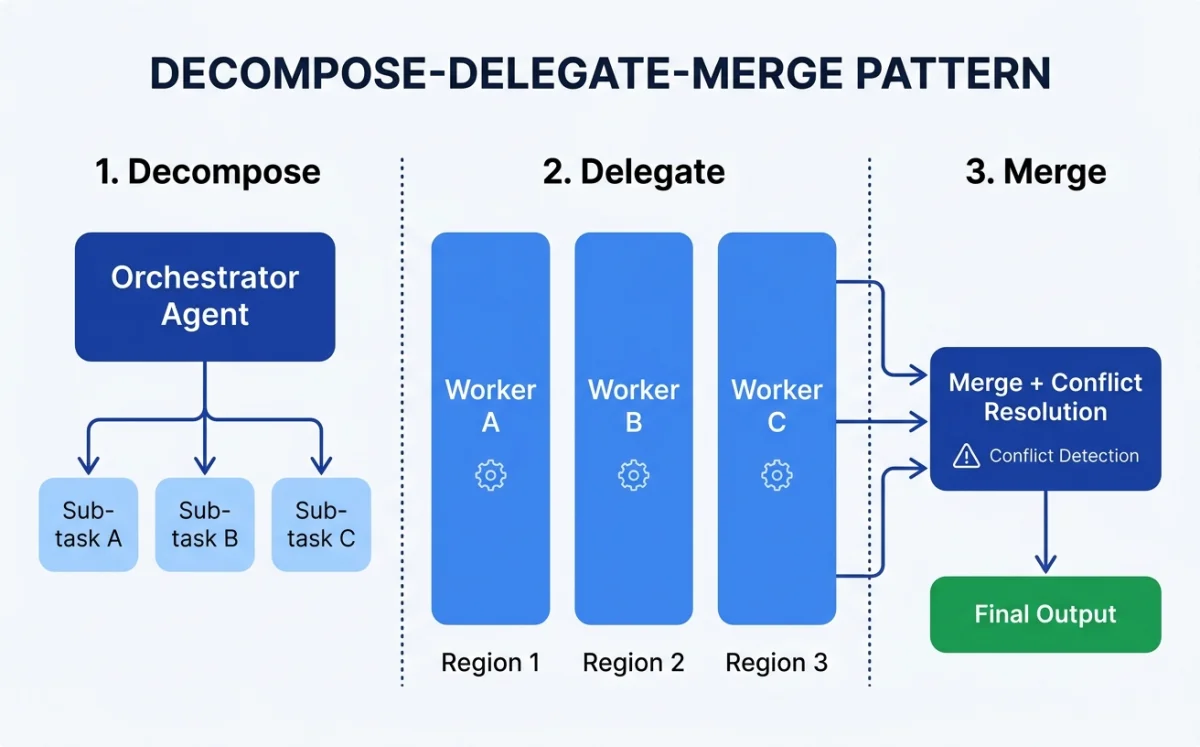
The orchestrator pattern is the backbone of multi-agent design. A single agent --- the orchestrator --- takes the design brief, breaks it into sub-tasks, assigns each sub-task to a worker agent, and merges the results.
Three phases.
Decompose. The orchestrator analyzes the brief. It identifies independent sub-tasks, defines boundaries between them, and specifies the interface where they will connect. For a dashboard design, the decomposer decides where the header ends and the sidebar begins, and what shared constraints (colors, spacing, typography) apply to all regions.
Delegate. Each sub-task gets assigned to a worker agent with specific context, constraints, and acceptance criteria. The worker agent receives the design system, its region boundaries, and any cross-region dependencies. It does not see the full brief --- only its slice.
Merge. The orchestrator collects outputs from all worker agents. It resolves conflicts: overlapping elements, inconsistent spacing, style mismatches. The merge step is where multi-agent design either succeeds or falls apart.
The merge step is the hard part. Merging requires understanding spatial relationships, resolving style conflicts, and ensuring visual consistency across regions that were designed independently. This is where the orchestrator pattern differs from simply concatenating independent outputs. The orchestrator has to do the work of a creative director: seeing the whole, identifying inconsistencies, and making corrections.
The orchestrator pattern appears in three places in the agentic design ecosystem.
OpenPencil's Agent Teams use spatial decomposition with a built-in orchestrator that manages canvas regions. Subagent-driven development uses functional or spatial decomposition with the parent agent as orchestrator. MCP chaining (covered in section 10.7) uses pipeline decomposition where the agent sequences tool calls across multiple MCP servers.
My take: The orchestrator pattern is the right mental model for multi-agent design, but the merge step is where current tools are weakest. An orchestrator can decompose and delegate reliably. Merging spatial outputs with visual consistency is still an unsolved problem in most tooling. OpenPencil's concurrent Agent Teams are the closest to solving this, but even they require human review after merge.
OpenPencil's Concurrent Agent Teams in Practice
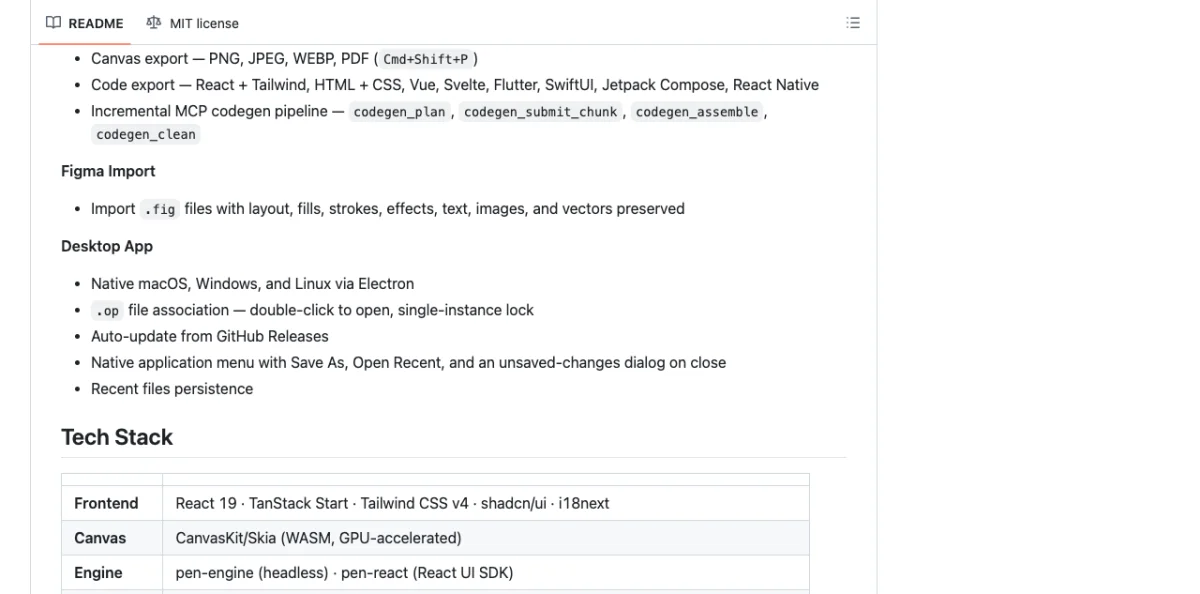
OpenPencil (3k+ GitHub stars as of May 2026) is the first open-source AI-native vector design tool with built-in concurrent Agent Teams. Multiple agents can work on different regions of the same canvas simultaneously.
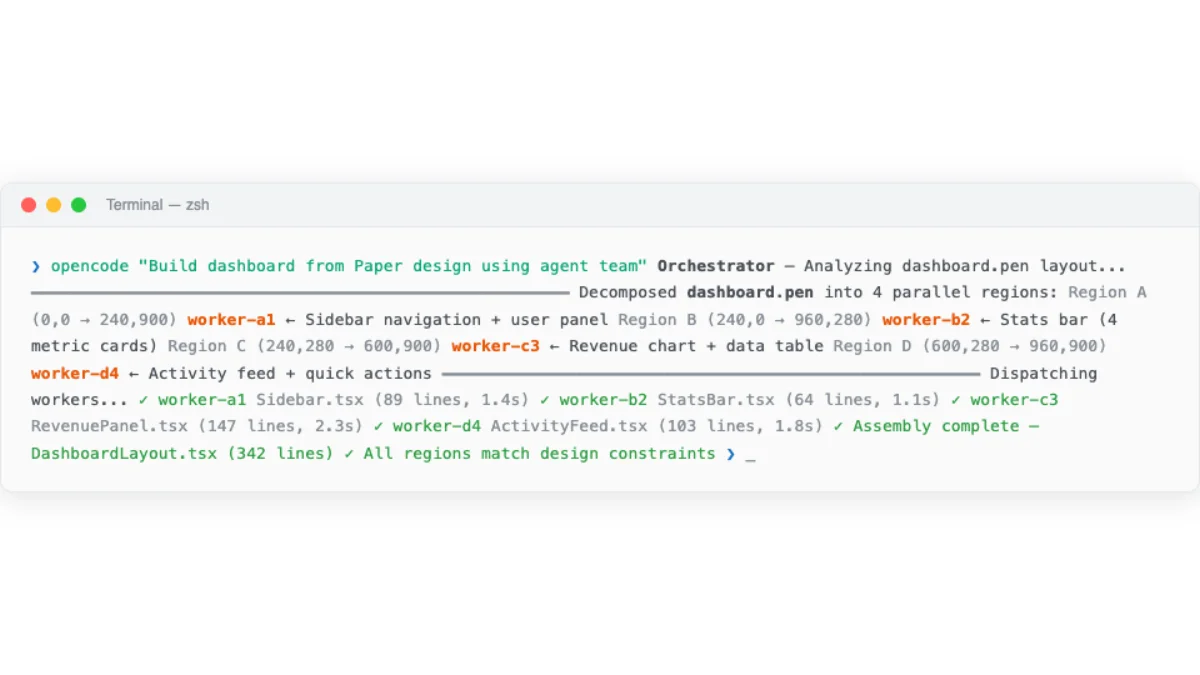
The architecture is straightforward. The canvas is divided into regions. Each agent is assigned a region with specific constraints: position, size, design system tokens, and task description. Agents work independently. Results are merged back into a single coherent design. Conflict resolution handles overlapping elements.
The .op file format supports concurrent reads and writes from multiple agents. This is a technical requirement that most design file formats do not handle. Standard file formats assume a single writer. OpenPencil's format assumes multiple writers and includes conflict resolution semantics.
The built-in MCP server exposes canvas operations as tools for external agent control. This means the concurrent agents can be any agent platform --- Claude Code, Codex, OpenCode --- not just OpenPencil's internal agent. The MCP server provides the coordination layer.
Practical use cases for concurrent Agent Teams.
Dashboard design. One agent builds the sidebar navigation. Another builds the header with search and user menu. A third builds the main content area with stats cards and charts. Each agent works on its region independently. The orchestrator merges them into a coherent dashboard.
Multi-page documents. Each agent handles a different page or section. One agent designs the cover page. Another designs the table of contents. A third designs the body content pages. This is spatial decomposition applied across pages rather than within a single page.
Component libraries. Agents work on different component variants in parallel. One agent builds button variants. Another builds form input variants. A third builds card variants. Each agent applies the same design system tokens, ensuring consistency without coordination overhead.
Subagent-Driven Development for Design Tasks
Subagent-driven development is the pattern where a parent agent spawns child agents to handle independent tasks in parallel. Applied to design, the parent receives the brief (for example, "build a marketing site"), decomposes it into sections (hero, features, testimonials, footer), and assigns each section to a subagent.
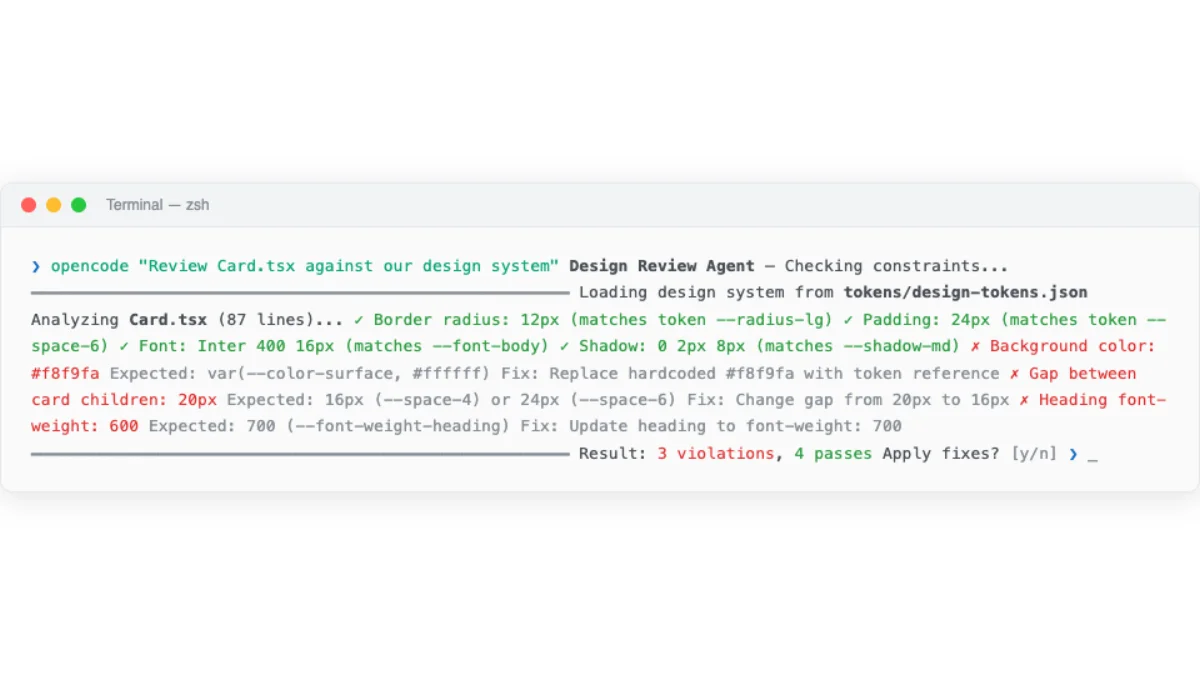
Each subagent executes independently with its own context window. The subagent loads only the skills and design system context it needs. This is an advantage over a single agent that must load everything into one context window. For a marketing site with a hero section, a features grid, a testimonials carousel, and a footer, each subagent gets the brand guidelines plus its specific section requirements.
The parent agent enforces global constraints: brand colors, typography scale, spacing system, component library. Subagents cannot override these. This is how the parent ensures consistency across parallel outputs without coordinating during execution.
The pattern has clear benefits. Parallel execution reduces wall-clock time. Specialization lets each subagent load only relevant context. Isolation means a failure in one subagent does not block others. Consistency is enforced at the parent level through shared constraints.
The pattern also has costs. Each subagent needs its own context, multiplying token usage. Merging outputs can introduce inconsistencies that the parent must resolve. Debugging is harder because the trace is distributed across multiple agents. And the total token cost is higher than a single agent handling the same task sequentially.
My take: Subagent-driven development shines for large designs with clearly separable sections. I use it for full-page builds where each section is visually independent. For anything smaller --- a single component, a design token update, a visual refinement --- single agent is faster and cheaper. The emerging best practice is correct: start single-agent, escalate to multi-agent only when the task clearly exceeds single-agent capacity.
Orchestration Strategies: When to Parallelize
The decision to parallelize is not binary. It depends on task size, interdependence between sections, time constraints, and token budget. The following table provides a decision framework.
| Factor | Single Agent | Multi-Agent |
|---|---|---|
| Task size | Small, focused (single component, single page) | Large, multi-section (full site, dashboard, component library) |
| Interdependence | High (sections visually affect each other) | Low (sections are visually independent) |
| Time sensitivity | Not urgent | Deadline-driven, parallelism saves meaningful time |
| Context window | Fits in single context window | Exceeds single context window |
| Skill diversity | One skill set sufficient | Multiple skill sets needed (layout + animation + export) |
| Token budget | Limited | Generous |
| Debugging needs | Need clear, linear trace | Can tolerate distributed trace |
Practical thresholds based on experience.
Always single-agent: a single component, a single page, design token updates, small edits to an existing design.
Consider multi-agent: a full page with four or more distinct sections, a component library with ten or more components.
Strongly multi-agent: a multi-page site, a dashboard with six or more widget types, a design system with fifty or more tokens.
Four orchestration strategies exist.
Fixed decomposition. Pre-define how the task splits before agents start. Region-based or component-based. The orchestrator follows a fixed plan. Predictable, testable, but inflexible.
Dynamic decomposition. Let the orchestrator analyze the task and decide the split at runtime. More flexible, but the decomposition quality depends on the orchestrator's judgment. Works best with strong design system context in the orchestrator's prompt.
Hybrid. Fixed high-level structure, dynamic low-level splitting. The orchestrator pre-defines the major sections but lets worker agents decide how to split their own sections. This is the most practical strategy for complex designs.
Pipeline. Agents in sequence, each specializing in one stage. Wireframe to visual to code. Each stage's output is the next stage's input. Not parallel, but allows deep specialization at each stage.
Dynamic Workflows: Orchestration as a Design Artifact
Dynamic Workflows matter in agentic design because they move the operating model out of a single conversation. The designer no longer has to manually coordinate every research pass, audit, verifier, and synthesis step. The workflow carries the process.
the phases worth repeating
agents, checks, synthesis
what to fix, ship, or defer
A Dynamic Workflow is Claude Code moving the plan out of the chat and into a script.
In a normal Claude Code session, Claude decides what to do next turn by turn. It reads files, edits code, runs checks, and brings the results back into the conversation. That is useful when you want to steer the work live.
In a Dynamic Workflow, Claude writes a JavaScript orchestration script for the task. A separate workflow runtime executes that script in the background. The script decides which agents run, what each agent investigates, how results are grouped, what gets verified, and what final answer comes back to you.
For designers, the simplest mental model is this:
A subagent is like asking one specialist to help. A Dynamic Workflow is like giving a production checklist to an entire temporary design team, then asking them to return only the reviewed result.
The important part is not only scale. The important part is where the plan lives. With subagents, the plan lives in Claude's conversation. With workflows, the plan lives in code. That makes the workflow repeatable, inspectable, resumable inside the same session, and much better suited to design audits, research sweeps, large migrations, and review pipelines.
Why This Matters for Design Work
Most design work is not a single prompt. It is a loop:
- Understand the existing context.
- Compare options.
- Generate an artifact.
- Review it against brand, usability, accessibility, and implementation constraints.
- Fix what failed.
- Produce a clean handoff.
Claude Code can already do that in a normal session. The limitation is that every intermediate result competes for the same context window. If ten agents inspect ten parts of a design system, all ten reports come back into the conversation. That can get noisy fast.
Dynamic Workflows change the operating model. The workflow script can fan out work across many subagents, keep intermediate findings in script variables, cross-check the results, filter weak claims, and return a final report. The designer sees the synthesized output instead of every scratch note.
That makes workflows especially useful when the task is:
- too broad for one conversation to coordinate cleanly;
- repeatable enough to save as a command;
- risky enough to need independent verification;
- large enough that many files, screens, or components need checking;
- structured enough that you can describe the phases before the run begins.
It is less useful when you want live creative back-and-forth. If you are exploring a hero layout and want to make subjective decisions every few minutes, stay in a normal Claude Code session. Workflows do not support mid-run user input except permission prompts. Use them when the process can run as a pipeline.
What Claude Code Gives You
As of May 2026, Dynamic Workflows are in research preview and require Claude Code v2.1.154 or later. They are available across paid Claude Code access paths, with provider availability depending on plan and environment.
You can use them in three main ways:
- Run the bundled deep research workflow:
/deep-research What are the strongest current patterns for AI-assisted design QA?- Use the trigger word
ultracodein your prompt to explicitly start a dynamic workflow:
Use ultracode to audit every component in this design system for token drift, accessibility gaps, and inconsistent responsive behavior.- Describe the task naturally and let Claude decide when a workflow is appropriate:
Run a design system audit across all 120 components. Check tokens, accessibility, and responsive behavior. Return a prioritized report.The trigger word changed in late May 2026. Previously, including the word workflow in your prompt would activate a dynamic workflow. That caused false triggers: you might say "this is a good workflow" in conversation and accidentally launch one. The trigger word is now ultracode. You can still say "use a workflow for this" in natural language and Claude will understand your intent, but only ultracode guarantees a workflow fires. If you say "workflow" without meaning to, nothing happens.
For most designers, the second option (explicit ultracode trigger) is the best starting point when you know you want a workflow. The third option (natural language) works when you are unsure and want Claude to decide.
You manage workflow runs with:
/workflowsThat view shows running and completed workflows, phases, agent counts, token usage, elapsed time, and individual agent results. A successful workflow can be saved as a reusable slash command. Project workflows live in:
.claude/workflows/Personal workflows live in:
~/.claude/workflows/For a design team, the project folder is the important one. It lets the team share the same audit or review workflow across a repository.
Subagents, Skills, and Workflows
Designers will encounter all three terms. They solve different problems.
| Mechanism | What it is | Where the plan lives | Best design use |
|---|---|---|---|
| Skill | Reusable instructions Claude reads | Claude's context | Teaching Claude your design rules, visual standards, or tool-specific process |
| Subagent | A worker Claude delegates to | Claude's context | Small parallel tasks, like reviewing one page while another checks CSS |
| Workflow | A script the runtime executes | Script variables | Large repeatable pipelines, audits, migrations, cross-checked research |
Use a skill when Claude needs to know how your design system works.
Use subagents when you need a few independent helpers in a live session.
Use a Dynamic Workflow when the whole process should be codified: fan out, inspect, verify, synthesize, and return a final answer.
Design Example: The Component Library Audit Workflow
Imagine you maintain a design system with 120 React components. Designers complain that the shipped components no longer match Figma. Engineers say the tokens are correct. Product managers see inconsistent UI in production.
This is a poor fit for a single chat turn. Claude would need to inspect many files, compare token usage, check accessibility, summarize exceptions, and avoid drowning you in raw findings.
This is a good Dynamic Workflow.
Prompt
Run a workflow to audit the component library under src/components against our design system rules.

Use CLAUDE.md, DESIGN.md, tokens.css, and the Storybook stories as source material.

Phases:
1. Inventory all components and group them by category.
2. Check token usage: color, typography, spacing, radius, shadows, and motion.
3. Check accessibility: keyboard behavior, labels, contrast, focus states, and semantic HTML.
4. Check responsive behavior in component stories where viewport variants exist.
5. Have a separate verifier agent review each high-severity finding.
6. Return a prioritized report with exact file paths, issue type, severity, evidence, and suggested fix.

Do not edit files. This is an audit only.
What the Workflow Does
Phase 1 creates the map. It identifies every component, story, token file, and documentation file.
Phase 2 fans out token checks. One group of agents checks colors. Another checks typography. Another checks spacing and radius. Another checks motion and transitions.
Phase 3 fans out accessibility checks. Agents inspect focus handling, labels, ARIA usage, keyboard paths, and contrast.
Phase 4 checks responsive behavior. Agents compare mobile, tablet, and desktop stories where available.
Phase 5 verifies findings. This is the important part. A workflow can force one agent's finding to be checked by another agent before it reaches the designer. That reduces false positives.
Phase 6 returns only the useful result: a ranked report.
Output Shape
# Component Library Audit

## Summary
- 120 components scanned.
- 18 confirmed issues.
- 6 high severity, 9 medium, 3 low.
- 11 suspected issues rejected by verifier agents.

## High Severity

### Button: focus ring invisible on dark backgrounds
- File: src/components/Button.tsx
- Evidence: focus state uses --color-focus-default, which has insufficient contrast against --color-surface-inverse.
- Verification: confirmed by independent accessibility verifier.
- Suggested fix: map inverse surfaces to --color-focus-inverse.

### Modal: escape key behavior inconsistent
- File: src/components/Modal.tsx
- Evidence: escape closes simple modal but not confirmation modal.
- Verification: confirmed in story interaction tests.
- Suggested fix: standardize close handler and document exception for destructive confirmation flows.
For a design system team, this is a better artifact than a chat transcript. It is closer to a design QA report.
Example Reusable Workflows for Design Teams
1. Design System Drift Audit
Purpose: Find where code has drifted away from the design system.
Best for: mature product teams with a component library, CSS variables, Tailwind config, or design token package.
Prompt:
Create and run a workflow called design-system-drift-audit.

Audit this repository for drift from our design system. Read CLAUDE.md, DESIGN.md, tokens, theme files, component stories, and production components.

Phases:
1. Build an inventory of tokens and components.
2. Find hard-coded colors, spacing, font sizes, shadows, radii, and z-index values.
3. Compare component variants against documented component rules.
4. Verify every drift finding with a second agent.
5. Rank issues by user-visible impact and migration effort.

Return a report with file paths, issue category, evidence, recommended token replacement, and confidence.
Do not make changes.
What makes it dynamic: the workflow adapts to the repository inventory. It does not need you to list every component manually. It discovers the system, fans out checks, then verifies findings.
Book angle: This belongs in a section about design systems at scale. It shows the designer moving from one-off prompting to an operational quality gate.
2. Competitive UX Research Workflow
Purpose: Research competing products and convert findings into design opportunities.
Best for: product designers planning a redesign, onboarding flow, pricing page, dashboard, or conversion funnel.
Prompt:
Run a workflow to research competitor onboarding patterns for B2B analytics tools.

Research five current competitors. For each one, gather evidence from public pages, docs, screenshots, changelogs, and credible reviews.

Phases:
1. Identify competitors and source types.
2. Extract onboarding patterns: signup, activation, empty states, template selection, data import, collaboration invite, and upgrade prompts.
3. Cross-check claims against at least two sources where possible.
4. Convert verified patterns into design opportunities for our product.
5. Return a cited research brief with confirmed patterns, weak signals, and recommendations.
What makes it dynamic: the workflow can split research by competitor, then synthesize by pattern. It can reject claims that only appear in one weak source.
Book angle: This is not "Claude browses the web." It is a research desk with source checking. That makes it appropriate for design strategy, not just UI production.
3. Multi-Screen Prototype Critique Workflow
Purpose: Critique a prototype across information architecture, visual hierarchy, interaction quality, accessibility, and implementation feasibility.
Best for: designers preparing a prototype review before showing stakeholders.
Prompt:
Run a workflow to critique the prototype in prototypes/new-dashboard.

Use these review lenses:
1. Information architecture and task flow.
2. Visual hierarchy and spacing.
3. Interaction states and empty/error/loading states.
4. Accessibility and keyboard usability.
5. Engineering feasibility and component reuse.

Assign independent agents to each lens. Then have a synthesis agent merge findings into:
- top 5 issues to fix before stakeholder review;
- top 5 strengths to preserve;
- unclear decisions that need human judgment;
- recommended next iteration plan.

Do not edit files.
What makes it dynamic: each lens runs independently, then the workflow merges them. This avoids one generic critique that misses the details.
Book angle: This fits the design review chapter. It teaches designers to turn critique into a repeatable operating model.
4. Figma-to-Code Migration Planning Workflow
Purpose: Plan a migration from design files or static mockups into production components.
Best for: teams moving a legacy design system into code, or replacing static handoff with component-driven design.
Prompt:
Run a workflow to plan a Figma-to-code migration for the checkout redesign.

Inputs:
- Existing Figma export in design/checkout-export
- Current React components in src/components
- Design tokens in packages/tokens
- Product requirements in docs/checkout-redesign.md

Phases:
1. Inventory screens, components, states, and repeated patterns.
2. Match Figma elements to existing production components.
3. Identify missing components or variants.
4. Estimate migration sequence by dependency and risk.
5. Verify the plan against accessibility and responsive requirements.
6. Return a migration plan with milestones, component gaps, risks, and first implementation slice.

Do not implement. Planning only.
What makes it dynamic: the workflow can compare multiple sources, split the mapping work screen by screen, and produce a plan that accounts for component dependencies.
Book angle: This belongs in design-to-production. It reframes migration as structured analysis before code generation.
5. Visual QA Release Gate Workflow
Purpose: Run a pre-release design QA sweep before a product launch.
Best for: landing pages, onboarding flows, dashboards, product launches, and marketing sites.
Prompt:
Run a workflow as a visual QA release gate for the pages under app/(marketing).

Phases:
1. Inventory user-facing pages and key responsive breakpoints.
2. Run or inspect available screenshots, tests, Storybook stories, and Playwright results.
3. Check layout stability, text overflow, spacing consistency, image loading, dark/light mode behavior, accessibility, and brand token usage.
4. Have verifier agents confirm high-severity issues.
5. Return a launch readiness report: blockers, important fixes, acceptable risks, and recommended follow-up tasks.

Only edit files if I explicitly approve after the report.
What makes it dynamic: release QA has many small checks. A workflow can parallelize them, keep noise out of the main context, and return a launch-focused decision artifact.
Book angle: This is the bridge between design quality and shipping discipline.
Use Case 1: Design System Governance
Dynamic Workflows can become a recurring governance mechanism. Instead of asking Claude once to "check the buttons," the team saves a workflow that checks token usage, component variants, accessibility states, responsive behavior, and documentation drift every time the design system changes.
Designer value: fewer regressions and less manual inspection.
Best output: a ranked design system drift report.
When to run it: before merging component library changes, before quarterly design system reviews, or after major token updates.
Use Case 2: Evidence-Based Design Research
Design research often suffers from weak evidence. A workflow can split research across sources, compare claims, and return only findings that survive verification.
Designer value: stronger research briefs with fewer hallucinated claims.
Best output: a cited competitor or pattern research report.
When to run it: before redesigning onboarding, pricing, search, dashboards, account setup, or any flow with mature competitors.
Use Case 3: Prototype Review from Multiple Lenses
A single critique often overweights one perspective. A workflow can assign separate agents to UX flow, visual hierarchy, accessibility, engineering feasibility, and brand consistency, then merge the results.
Designer value: more balanced critique before stakeholder review.
Best output: top fixes, strengths to preserve, and a prioritized iteration plan.
When to run it: before presenting a prototype, before handing work to engineering, or after generating a first-pass AI prototype.
Use Case 4: Large-Scale UI Migration
When moving static designs into production code, the hard part is not generating one component. The hard part is mapping screens, states, existing components, missing variants, dependencies, and risks.
Designer value: a migration plan that avoids rebuilding everything blindly.
Best output: component mapping, missing variant list, implementation slices, and risk register.
When to run it: during redesigns, design system adoption, framework upgrades, or Figma-to-code transitions.
Use Case 5: Launch-Ready Visual QA
A launch surface can fail in small ways: text overflows, focus states disappear, a mobile breakpoint collapses, a marketing image fails, or a component uses a stale color token. A workflow can check these systematically.
Designer value: a repeatable release gate that protects visual quality.
Best output: launch readiness report with blockers, important fixes, and acceptable risks.
When to run it: before publishing a landing page, product dashboard, onboarding flow, documentation site, or campaign page.
Practical Rules for Designers
Use a Dynamic Workflow when:
- the task has clear phases;
- the same process will be repeated;
- many files, pages, components, or sources need checking;
- independent verification matters;
- the output should be a report, plan, or prioritized backlog.
Do not use a Dynamic Workflow when:
- you need live creative conversation;
- the task is small enough for one Claude turn;
- you are still deciding the direction;
- you cannot afford the token cost;
- you need approval between every stage.
Start small. Run one workflow as an audit before letting workflows edit files. Once the report shape is useful, save it as a reusable command.
Cost and Safety Notes
Dynamic Workflows can be expensive because they spawn many agents. Each agent uses the session model unless the workflow routes a stage to a different model. Before a large run, check:
/modelFor design tasks, ask Claude to use cheaper models for broad inventory work and stronger models for synthesis or final judgment:
Use a smaller model for inventory and extraction phases. Use the strongest model only for final synthesis and high-severity verification.Also remember:
- workflow scripts do not directly read files or run shell commands; the agents do that work;
- workflow agents inherit your tool allowlist;
- file edits inside workflow agents are auto-approved;
- shell, web, and MCP calls outside the allowlist can still prompt;
- stopping a workflow does not necessarily lose completed work inside the same session;
- resuming works inside the same Claude Code session, not after exiting and starting fresh.
For designers, the safest default is audit first, edit second.
My Take
Dynamic Workflows are not just "more subagents." They are a different contract. A subagent helps you in the current conversation. A workflow turns a process into a repeatable machine.
That matters for design because the hardest design work is often not producing the first artifact. It is checking the artifact from enough angles that you trust it: brand, layout, accessibility, responsiveness, implementation, and user flow. A workflow can encode that review pattern so you do not have to remember it every time.
The tradeoff is cost and flexibility. If you are sketching direction, stay conversational. If you are auditing a design system, preparing a launch, or researching a market, use a workflow.
design system drift
evidence-backed patterns
multi-lens review
screen-to-component plan
launch readiness gate
Workflow Patterns from the Field
Anthropic published a detailed field guide on dynamic workflows in June 2026. Several patterns from that guide are worth knowing even if you never write a workflow yourself, because they describe how complex design tasks decompose across multiple agents.
Fan-out-and-synthesize. Split a task into parallel steps, run a subagent on each, then merge the results. This is the pattern behind batch design work: generating 20 hero section variants in parallel, each with its own clean context so they don't cross-contaminate. The synthesis step is a barrier. It waits for all fan-out agents, then merges their structured outputs into one result.
Adversarial verification. For every subagent that produces output, spawn a second subagent that critiques it against a rubric. This directly addresses self-preferential bias. I use this for design reviews: one agent generates, another marks up every weakness. The workflow structurally prevents an agent from grading its own work.
Tournament. Spawn N agents that compete on the same task with different approaches. A judging agent picks the winner through pairwise comparison. This is how I run naming exercises and direction exploration. Generate broadly, then let a focused judge narrow it down. Comparative judgment is more reliable than absolute scoring.
Loop until done. For tasks where you don't know the scope upfront, keep spawning agents until a stop condition is met. No new findings. No remaining errors. Quality threshold reached. Useful for iterative design refinement where "done" is a quality bar, not a line count.
The failure modes these patterns address are real. Anthropic names three specifically:
- Agentic laziness: the agent stops before finishing and declares the job done after partial progress. Address 35 of 50 items in a design audit and call it complete.
- Self-preferential bias: the agent prefers its own results, especially when asked to verify them against a rubric.
- Goal drift: gradual loss of fidelity to the original objective across many turns, especially after context compaction. Edge-case requirements and "don't do X" constraints get lost.
Each pattern targets a specific failure mode. Fan-out reduces laziness by giving each agent a bounded, completable task. Adversarial verification eliminates self-preferential bias by structurally separating production from critique. Loop-until-done handles goal drift by checking a stop condition instead of trusting the agent to self-assess completion.
A practical design prompt using these patterns:
Use ultracode to review my landing page.
For each section, spawn one agent that audits the visual hierarchy
and another that checks accessibility. Synthesize into a priority-ranked
fix list.
This gives you a structured review with independent quality checks per section. No single agent grades its own work. The synthesis step merges everything into one actionable list.
Workflows can also be saved and distributed as part of a skill. A design team could ship a standard "design audit" workflow that every team member runs before shipping. The workflow is a JavaScript file in the skill folder, referenced from SKILL.md. More on skill distribution in Chapter 03.
My take: The pattern language matters more than any single workflow. Once you understand fan-out, adversarial verification, tournament, and loop-until-done, you can compose them for any design task. You don't need to memorize specific workflow scripts. You need to recognize which failure mode you're fighting and apply the right structural fix.
Resource: See Claude Code Dynamic Workflows for the official workflow commands, runtime behavior, saved workflow locations, permissions, token cost, and current availability. See also "A Harness for Every Task" (Anthropic, June 2026) for the full pattern catalog and field examples.
Context management is the critical challenge across all strategies. Each subagent needs design system context: brand colors, typography, spacing. This context must be communicated without duplication. Shared CLAUDE.md or AGENTS.md files (covered in Chapter 03) solve this by providing a single source of truth that all agents read from.
The Complexity Tax: When Single Agent Wins
Multi-agent introduces overhead that is easy to underestimate. I call this the complexity tax, and it has five components.
Orchestration cost. Tokens spent on decomposition instructions and merge instructions. The orchestrator has to explain the task to each worker, define boundaries, and then parse and merge the results. These are tokens not spent on actual design work.
Context duplication. Each agent needs baseline design system context. If the brand guidelines are 500 tokens and you run four agents, you spend 2000 tokens on context that a single agent would have loaded once.
Merge failures. Inconsistent spacing between sections designed by different agents. Misaligned elements at region boundaries. Conflicting style decisions. These failures require human review and manual fixes, negating the time saved by parallelism.
Debugging difficulty. When the merged output has an alignment issue, which agent caused it? Distributed execution means distributed blame. Tracing a visual bug back to a specific agent's output is harder than debugging a single agent's sequential work.
Coordination latency. Time spent waiting for all agents to complete. The slowest agent determines the wall-clock time. If one agent is slow (a complex section, a larger context), the parallelism benefit shrinks.
Single agent has clear advantages in these scenarios.
| Scenario | Why Single Agent Wins |
|---|---|
| Single component or page | Task fits in one context window, no decomposition needed |
| Visual refinements across the whole design | Requires seeing the whole picture, holistic judgment |
| Well-defined design system | Context fits in one window, system constraints reduce variance |
| Prototyping with fast iteration | Speed of iteration matters more than speed of generation |
| Token-sensitive workflows | Single agent uses fewer total tokens |
The emerging best practice is simple: start single-agent. Escalate to multi-agent only when the task clearly exceeds single-agent capacity. This is not a cop-out. It is a recognition that multi-agent complexity is real and the benefits are not always worth the cost.
My take: A poorly orchestrated multi-agent team can be slower and produce worse results than a single well-prompted agent. I have seen this play out multiple times. The enthusiasm for parallelism is understandable, but the merge step is where multi-agent design fails in practice. Until tooling gets better at resolving cross-region inconsistencies automatically, treat multi-agent as an optimization for large, well-bounded tasks, not a default approach.
Multica: treating agents as assignable teammates on a task board
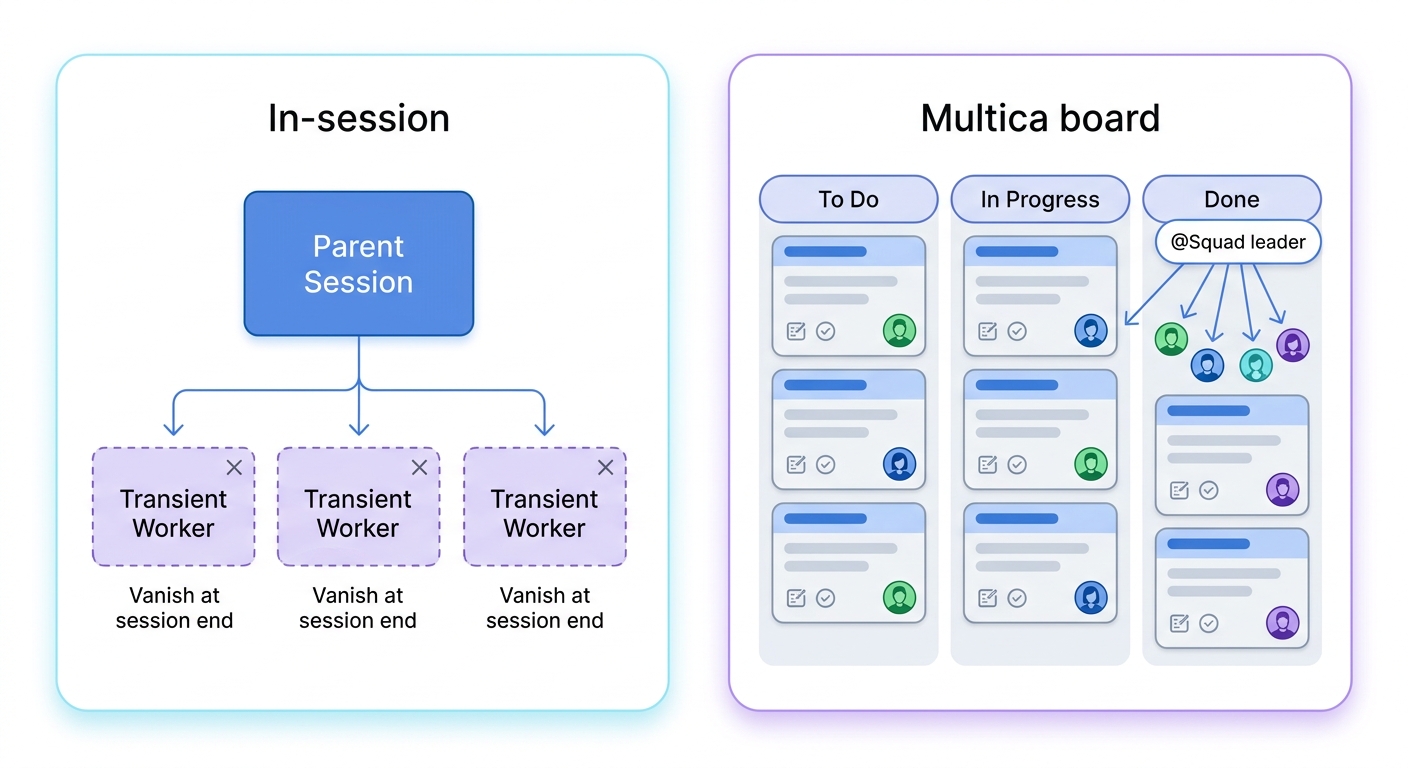
Most multi-agent orchestration lives inside one session: a parent agent spawns workers, merges their output, and exits when the conversation ends. Multica (open-source, github.com/multica-ai/multica) makes a different bet — orchestration as standing infrastructure. Agents become first-class entries on a task board. You assign an issue to an agent the way you assign it to a colleague; it claims the work, writes code, reports blockers, and updates status over WebSocket, across Claude Code, Codex, OpenCode, Gemini, and others. Squads add a routing layer: assign to @FrontendTeam and a leader agent delegates to a member.
Two ideas here matter for design teams specifically. First, "compounding skills" — every solved task becomes a reusable skill for the whole team, which is the per-repo skill convention applied at the organization level instead of the project level. Second, autopilots: cron-triggered recurring work, so a weekly design-system audit or a nightly token-drift check runs itself.
My honest read: this solves a coordination problem, not a merge problem. The hard part of multi-agent design — reconciling spatial output from independent workers into one consistent canvas — is still yours to review. What Multica buys you is persistence and routing: the plan lives in a board, not a conversation, so it survives across sessions. That is the right tool only once your design work is large and recurring enough to justify the standing overhead.
Self-healing `/goal` commands and the limits of autonomous plans
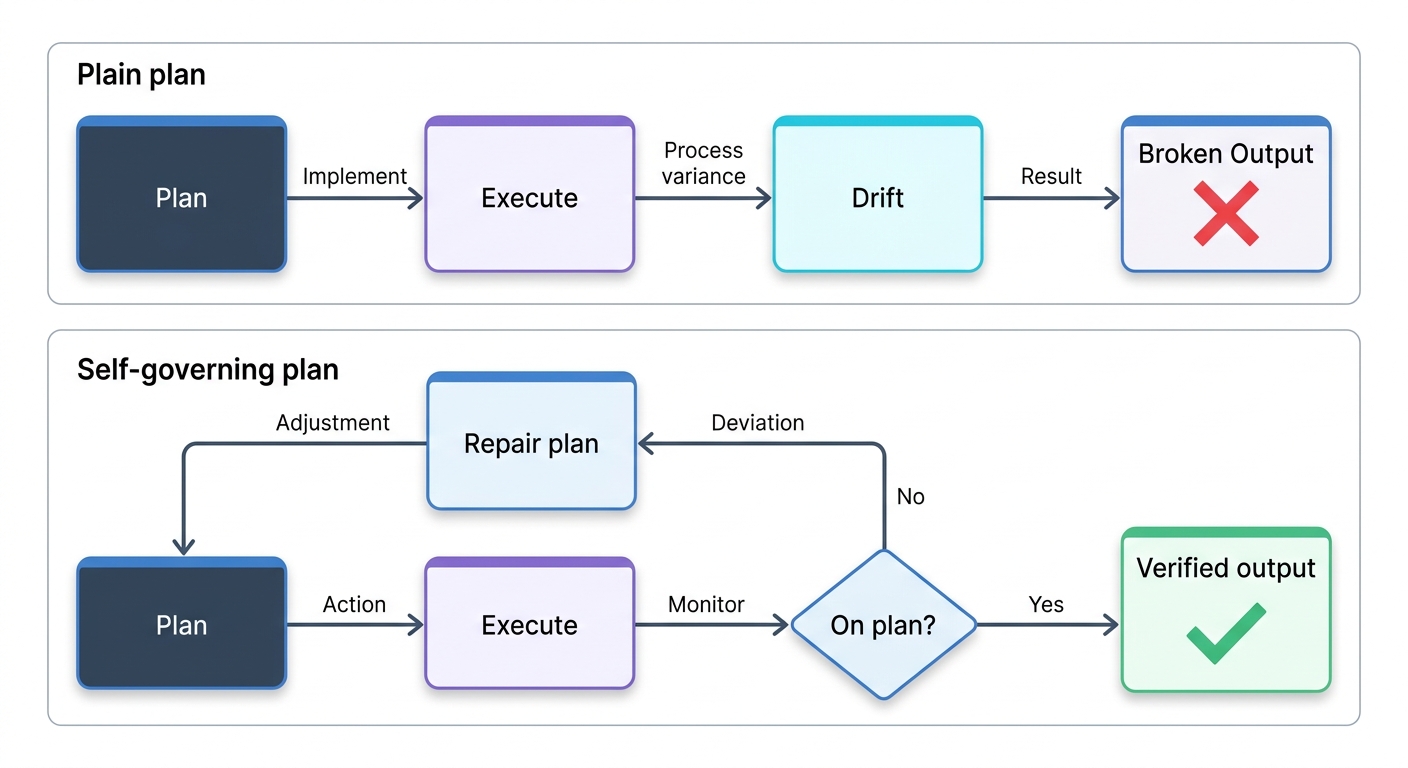
When the plan for an autonomous run lives in code rather than in a conversation, the next question is what happens when the plan is wrong. Most autonomous runs fail the same way: the plan was plausible at the start, drifted partway through, and nothing noticed until the output was already broken. Robert Courson's /supergoal command is one community attempt at the obvious fix — a /goal upgrade he describes as "self-healing, self-governing," built for Claude Code, Codex, and any IDE that supports /goal. The premise is that an autonomous build should detect when it has gone off-plan and repair the plan, not just the code.
I am flagging this as a direction, not a recommendation. One commenter admitted rewriting the same goal three times in a single session before it held, which tells you the self-repair is still aspirational. But the instinct is right, and it maps directly onto a recurring weakness in autonomous design work: the merge step, and more broadly the moment where an autonomous run needs a check against its own intent. A design plan that can notice "this no longer matches the brief" and revise itself is the missing governor on long agentic runs.
For now, treat self-healing goals as something to watch and test on a small design task before trusting them on anything that takes hours. The pattern matters more than this specific implementation.
Next: Whether one agent or many, the output eventually needs to become production code. Chapter 12 walks through the complete pipeline from design artifact to production-ready UI, covering code export from Paper, Pencil, and OpenPencil, responsive breakpoints, accessibility enforcement, and the review-and-iterate loop.